 Vidiyo
Start an AI channel
Set up Autopilot in Vidiyo Studio with a brief, a cadence, and a credit cap so Vidiyo generates, ingests, and schedules new videos on your channel.
Autopilot is a standing order for new videos. You describe the programming once. On your cadence, Vidiyo plans a set of stories and generates a video for each one. The videos are ingested like uploads and added to the channel, so the schedule can pick them up.
There are two ways in. Start an AI channel creates a fresh channel and its first brief in one pass. The Autopilot tab on an existing channel adds a brief to a channel you already have. Both end on the same Autopilot tab, where you watch runs and manage the brief.
Autopilot generates video with the same partner tools as Create with AI, which are in early access and rolling out to creators gradually.
Before you start
- Sign in to Vidiyo Studio with a verified email. Autopilot is blocked until you verify.
- Have Create Credits. Each run holds credits per video before generating. A 60-second video costs 20 credits, so three cost 60. See Create a video with AI for prices.
- To add Autopilot to an existing channel, the channel must be portrait or have no orientation yet. Generated videos are vertical (9:16). A channel locked to landscape cannot take them.
- Adult channels do not accept AI-generated content.
Steps
1. Start an AI channel from the Dashboard
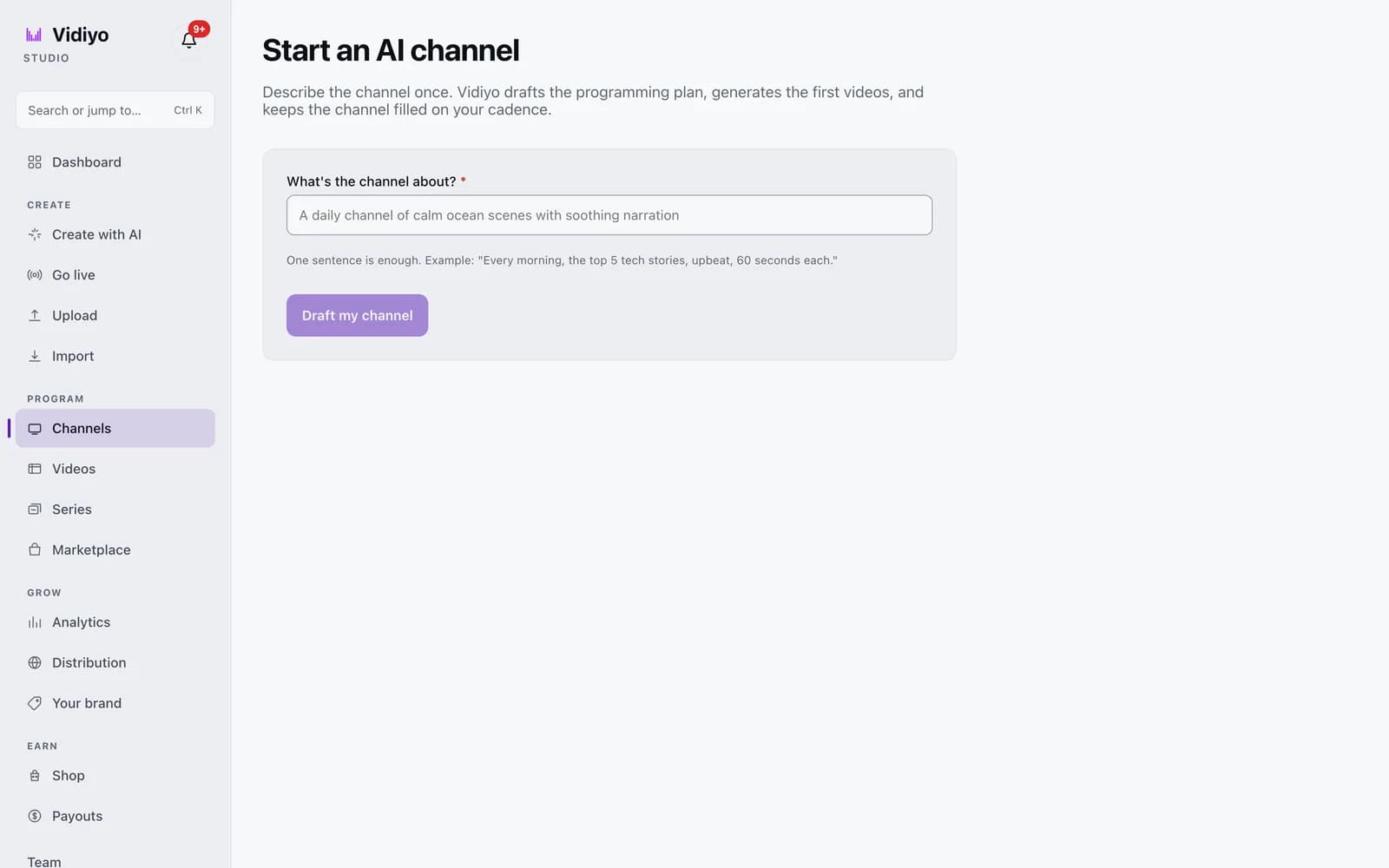
On the Dashboard, under What should Vidiyo make today?, click Start an AI channel. The same link sits on the Channels page. The page title reads Start an AI channel.
In What's the channel about?, describe the channel in one sentence. The hint gives an example: "Every morning, the top 5 tech stories, upbeat, 60 seconds each." The field takes 4 to 500 characters. Click Draft my channel.
2. Review the drafted plan
Vidiyo's assistant turns your sentence into a draft: a Channel name, the subject under Every video covers, a Cadence, Videos per run, and a Video length. Below the form, Example episodes the assistant has in mind lists sample titles so you can judge the direction. Edit anything that is off.
- Channel name is required, up to 80 characters. A language field sits under it.
- Every video covers is required, 4 to 500 characters. This becomes the standing subject of the brief.
- Cadence is Every day or Once a week.
- Videos per run is 1 to 10.
- Video length is 30 seconds, 60 seconds, or 90 seconds.
Next to the submit button, ~N credits per run shows what a run will cost at those settings. If the assistant is unavailable, the same form opens with your sentence as the subject. Fill it in by hand.
3. Create the channel and start generating
Click Create channel + start generating. Vidiyo creates a 24/7 channel with your name and language, saves the brief, and kicks off the first run right away. A message confirms Your AI channel is being made and you land on the channel's Autopilot tab.
The note above the button states the rules: videos are AI-generated and carry an AI-content label, the channel starts portrait (9:16), and nothing is charged until each run generates.
4. Add Autopilot to an existing channel
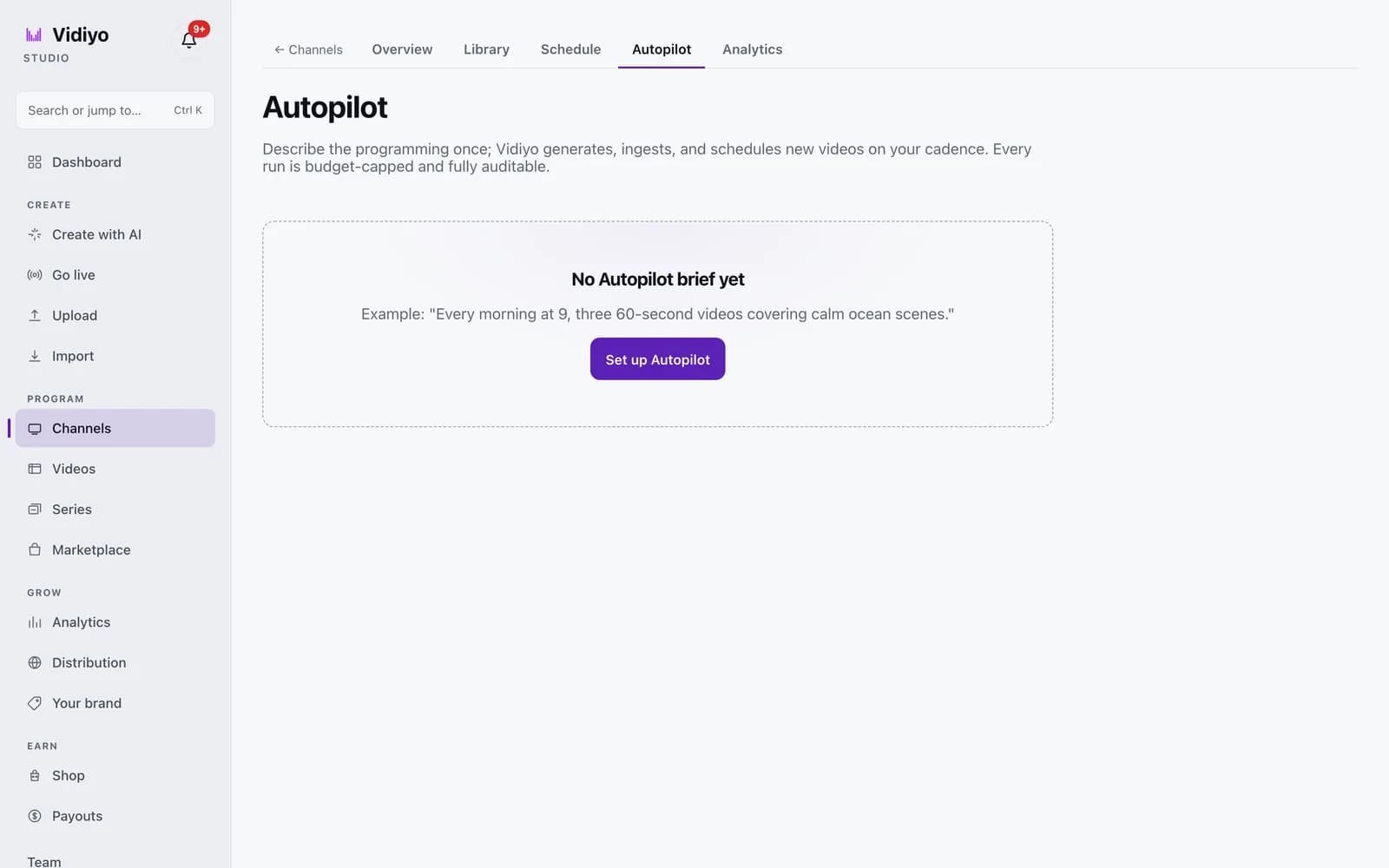
Open a channel and click the Autopilot tab. With no brief yet the page shows No Autopilot brief yet with an example: "Every morning at 9, three 60-second videos covering calm ocean scenes." Click Set up Autopilot.
5. Fill in the brief
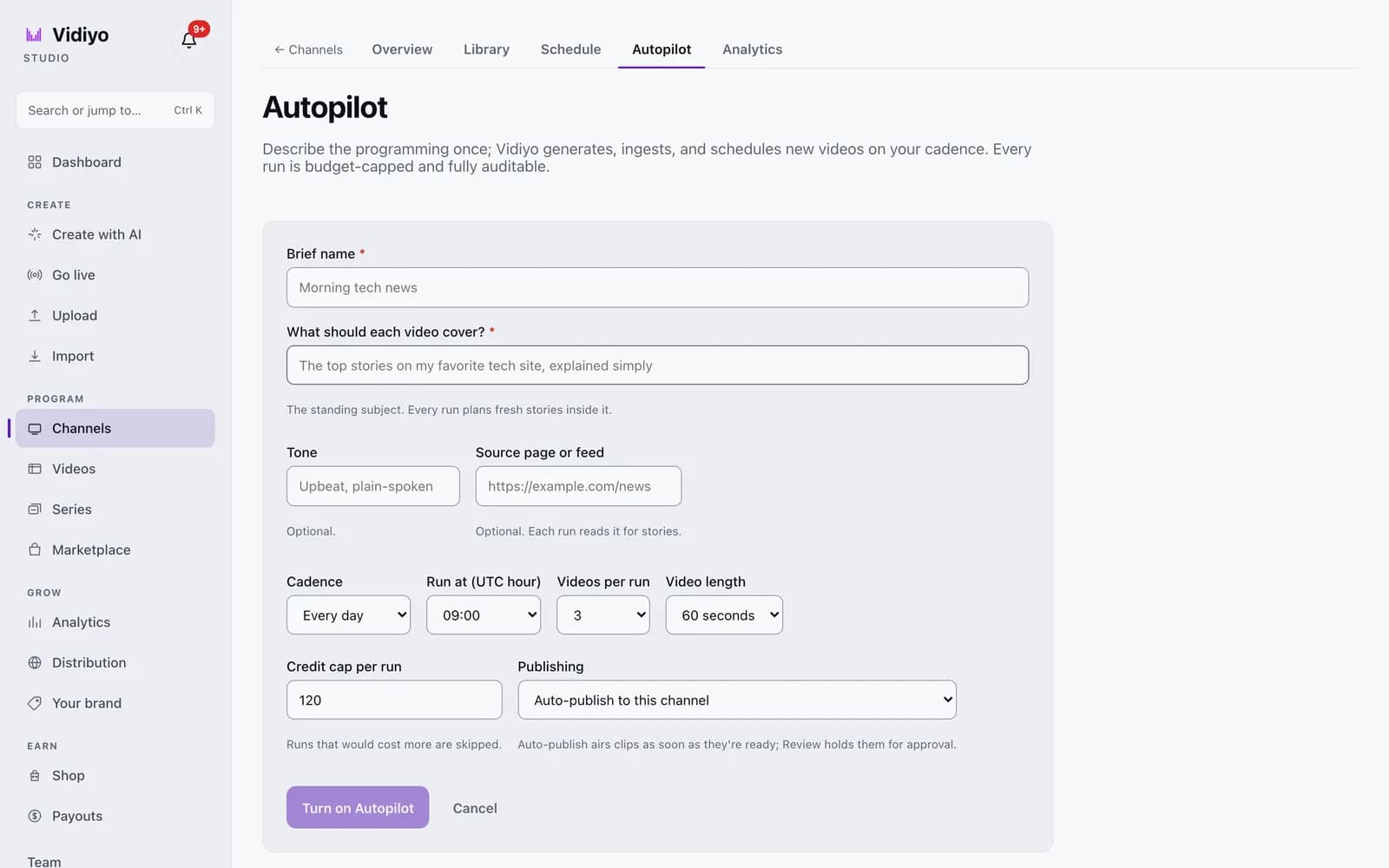
The brief form has more controls than the wizard.
- Brief name (required). The placeholder reads "Morning tech news".
- What should each video cover? (required). The hint calls it the standing subject. Every run plans fresh stories inside it.
- Tone (optional), for example "Upbeat, plain-spoken".
- Source page or feed (optional). Paste an https URL. Each run reads it for stories.
- Cadence: Every day or Once a week. Weekly briefs add a Day field.
- Run at (UTC hour): any hour from 00:00 to 23:00, in UTC. The default is 09:00.
- Videos per run: 1 to 10. The default is 3.
- Video length: 30 seconds, 60 seconds, or 90 seconds.
- Credit cap per run: the most a single run may cost. The default is 120. The hint reads Runs that would cost more are skipped.
- Publishing: Auto-publish to this channel or Hold for my review.
Click Turn on Autopilot. A message confirms Autopilot is on. The form is the one shown at the top of this page.
6. Watch runs and approve videos
Each brief shows as a card with an On or Paused badge, the subject, and a summary line: run time in UTC, videos and length per run, estimated credits per run, and credits spent this month.
Recent runs lists the latest seven runs. Each shows the date, a status of planning, generating, completed, failed, or skipped, and the credits spent or held. A skipped or failed run also shows the reason.
If Publishing is Hold for my review, finished videos wait in a box that reads N videos waiting for your approval. Click Approve on each one. Approving adds the video to the channel and asks the schedule to fill the next 24 hours.
How a run works
At the run hour, Vidiyo plans the stories first. If the brief has a Source page or feed, it reads that page and plans stories from it. If the source cannot be read that day, the run fails and the log says so. A brief without a source plans from the subject and tone alone.
Next comes the budget check. The cost of the run is the price of one video at your Video length multiplied by Videos per run. If that number is over Credit cap per run, the run is skipped and the log records why. An example reason: "Today's run needs 200 credits but the per-run cap is 120."
Then Vidiyo starts one generation job per story and holds the credits for each. If your balance runs out partway through, the videos that already started keep going and the log notes it. Finished videos are transcoded, labeled as AI content, and, on Auto-publish to this channel, added to the channel library so the schedule can use them.
Skipped and failed runs also send you a notification titled Autopilot skipped or Autopilot failed with the brief name and the reason.
Tips
- Set Credit cap per run above the estimate on the card. A cap below the estimate skips every run.
- Start with Hold for my review for a topical brief with a source feed. Switch to Auto-publish to this channel once you trust the output.
- Click Run now on a brief card to test a run without waiting for the hour. It only works while the brief is On.
- Pause stops future runs and keeps the brief. Resume picks the schedule back up. Turn off removes the brief.
- Run hours are UTC. Pick the hour so videos land before your audience's peak.
Quick answers
How much does Autopilot cost per run?
The price of one video at the chosen length, times the number of videos per run. A 30-second video costs 10 credits and a 60 or 90-second video costs 20, so the default of three 60-second videos is 60 credits. The brief card shows the estimate in credits per run.
What happens if a run would cost more than the cap?
The run is skipped before any credits are held. The run log shows a skipped status with the reason, and you get a notification. Raise the credit cap per run or lower the videos per run to let the next run through.
Can I use Autopilot on a landscape channel?
No. Generated videos are vertical (9:16), so a channel locked to landscape rejects the brief. Use a portrait channel, a channel with no videos yet, or the Start an AI channel wizard to create a new portrait channel.
Do I have to approve every video?
Only if publishing is set to hold for your review. In that mode finished videos wait on the Autopilot tab until you click Approve. With auto-publish, each finished video joins the channel library as soon as it is ready.
Are the videos labeled as AI-generated?
Yes. Every video Autopilot makes carries an AI-content label, the same as videos from Create with AI. See AI-generated content on TV for what that means for viewers.
Open Studio
Upload a video, go live, or program your channel. Studio is free, and every guide here walks you through one task.