 Vidiyo
Get paid
Connect a Stripe account in Vidiyo Studio, read your revenue share and payout minimum, and know when each month's ad revenue reaches your bank.
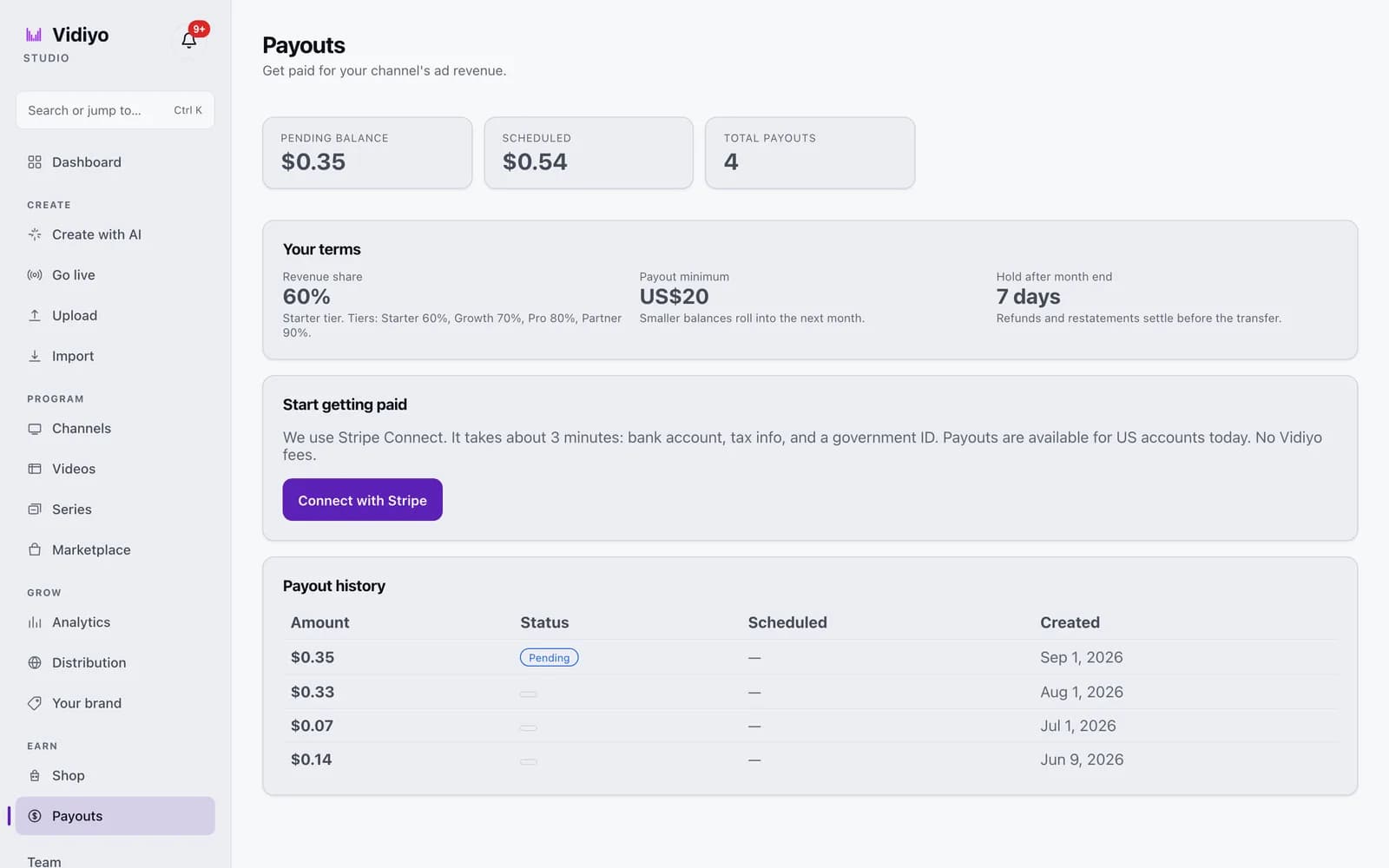
Your channels earn ad revenue while people watch. The Payouts page in Studio shows what you have earned, the terms you are paid under, and where the money goes. Payouts run through Stripe Connect. Vidiyo does not charge a fee on top of your share.
Use this page once to connect Stripe, then come back each month to check your balance and history.
Before you start
- You need a Vidiyo account with at least one channel that has had views. Until then the page shows your terms but no balance cards.
- Stripe onboarding asks for a bank account, tax information, and a government ID. Payouts are available for US accounts today.
Steps
1. Open Payouts
In the Studio sidebar, under Earn, click Payouts. The page opens with three cards at the top: Pending balance, Scheduled, and Total payouts. Pending is money from months that have not closed yet. Scheduled is money that is on its way to Stripe. Total payouts counts every payout row in your history. If you have received live gifts, a fourth card shows Live gifts (lifetime).
2. Read your terms
The Your terms card shows three numbers. Revenue share is your cut of gross ad revenue, set by your tier. The four tiers are Starter 60%, Growth 70%, Pro 80%, and Partner 90%. New accounts start on Starter. Payout minimum is US$20; a smaller balance rolls into the next month. Hold after month end is 7 days, which gives refunds and reporting restatements time to settle before the transfer.
3. Connect with Stripe
In the Start getting paid card, click Connect with Stripe. Studio sends you to Stripe's hosted onboarding, which takes about 3 minutes. Enter your bank account, tax details, and ID. When you finish, Stripe returns you to the Payouts page.
4. Check your Stripe status
After you connect, the card is titled Stripe Connect and shows a status badge. Setup needed means Stripe still needs information; click Continue onboarding to pick up where you left off. Verifying means Stripe is checking your details, which usually takes 1 to 2 days. Active means payouts can transfer. Restricted means Stripe has paused payouts; contact support. Click Refresh status to pull the latest state from Stripe.
5. Follow your payout history
The Payout history table lists one row per month with Amount, Status, Scheduled, and Created. Status is Pending, Paid, or Failed. The Scheduled column fills in once the month has closed and its hold has passed. Before your first payout, this area reads No payouts yet and explains the minimum and the hold.
Tips
- You do not need to connect Stripe before you start earning. Balances accrue from your first views and wait for you.
- Amounts in Studio and amounts in your payout are computed from the same terms, so the number you see is the number Stripe transfers.
- Tiers are assigned by Vidiyo. You cannot change your tier from the Payouts page.
- Live gifts are a separate product from ad revenue. Vidiyo keeps a 30% platform fee on gifts, and your net shows in the Live gifts (lifetime) card.
Quick answers
When do I get paid?
Payouts are monthly. After a month ends, Vidiyo closes the period and holds it for 7 days so refunds and restatements can settle. Once the hold passes, any balance of US$20 or more is scheduled and transferred to your Stripe account. Studio sends you a notification when a transfer starts, and another when it settles or fails.
What is the minimum payout?
US$20. If your balance for a month is under US$20, it stays pending and rolls into the following month until the total reaches the minimum.
How much of the ad revenue do I keep?
Between 60% and 90% of gross, depending on your tier: Starter 60%, Growth 70%, Pro 80%, Partner 90%. The Your terms card on the Payouts page shows the share that applies to you.
Does Vidiyo charge a fee for payouts?
No. Vidiyo does not add a fee on payouts. Stripe handles the transfer through its Connect program.
Can I get paid outside the United States?
Not yet. Stripe payouts on Vidiyo are available for US accounts today. Your balance still accrues, so you will not lose earnings while you wait.
Open Studio
Upload a video, go live, or program your channel. Studio is free, and every guide here walks you through one task.