 Vidiyo
Use the Creator Marketplace
Schedule videos other creators have listed onto your channel, list your own videos for others to air, and track the 35% or 50% share you earn.
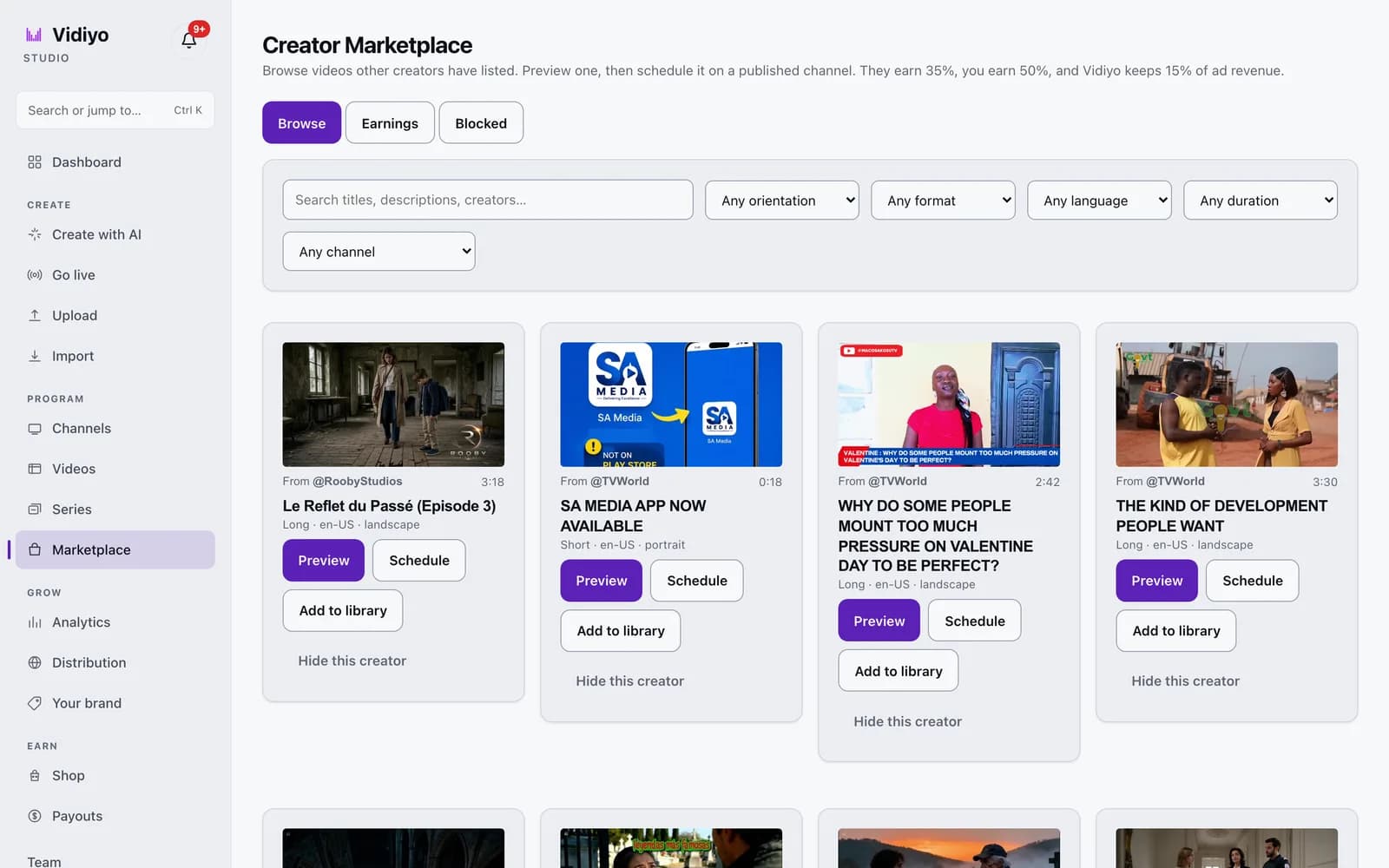
The Creator Marketplace is a shared library of videos that Vidiyo creators have agreed to let other creators air. You can fill gaps in your schedule with someone else's video. You can also list your own videos so they earn while they play on other channels.
Ad revenue from a marketplace airing splits three ways. The channel that aired it keeps 50%, the creator who owns the video gets 35%, and Vidiyo takes 15%.
Before you start
- To schedule a marketplace video you need at least one published general-audience channel. Adult channels cannot air marketplace videos.
- To list your own video, it must have finished processing (status Ready) and you must own every element in it, including the music.
Steps
1. Open the Marketplace
In the Studio sidebar, under Program, click Marketplace. The page has three tabs: Browse, Earnings, and Blocked. Browse opens first.
2. Search and filter listings
Use the search box to match titles, descriptions, and creator names. Narrow the grid with Any orientation, Any format, Any language, and Any duration. Pick a channel in Any channel to show only listings that fit that channel's orientation and rating. Each card shows the creator handle, runtime, title, and a line with format, language, and orientation.
3. Preview a video
Click Preview on a card, or click its thumbnail. The detail dialog plays the video and lists Duration, Orientation, Format, Rating, Language, Fits your channels, and Revenue split. A video with strong language carries an Explicit language badge.
4. Schedule it on your channel
Click Schedule on the card. In the dialog, pick a Channel from your published channels, set a Start time in your local time, and click Add to schedule. The block appears on that channel's week grid. If you have no eligible channel, the dialog tells you to publish a general-audience channel first.
5. Add it to a channel library instead
Click Add to library to put the video into a channel's rotation without picking a time. Choose the Channel and click Add to library. The channel's auto-fill can now draw on it. Ownership does not change, and the video does not appear on that channel's On Demand page.
6. Hide a creator you do not want to see
Click Hide this creator on any card. Their listings leave your Browse grid, and they are never notified. To undo it, open the Blocked tab, find the row, click Remove, and confirm. Blocks are private to you.
7. List your own video
Open Videos, open a video that is Ready, and find the Creator Marketplace card. Click List on Marketplace. Read the Vidiyo Open License, tick both confirmations (you hold the rights, and any music is cleared for commercial syndication), then click Accept & list. The card badge changes to Listed.
8. Track your earnings
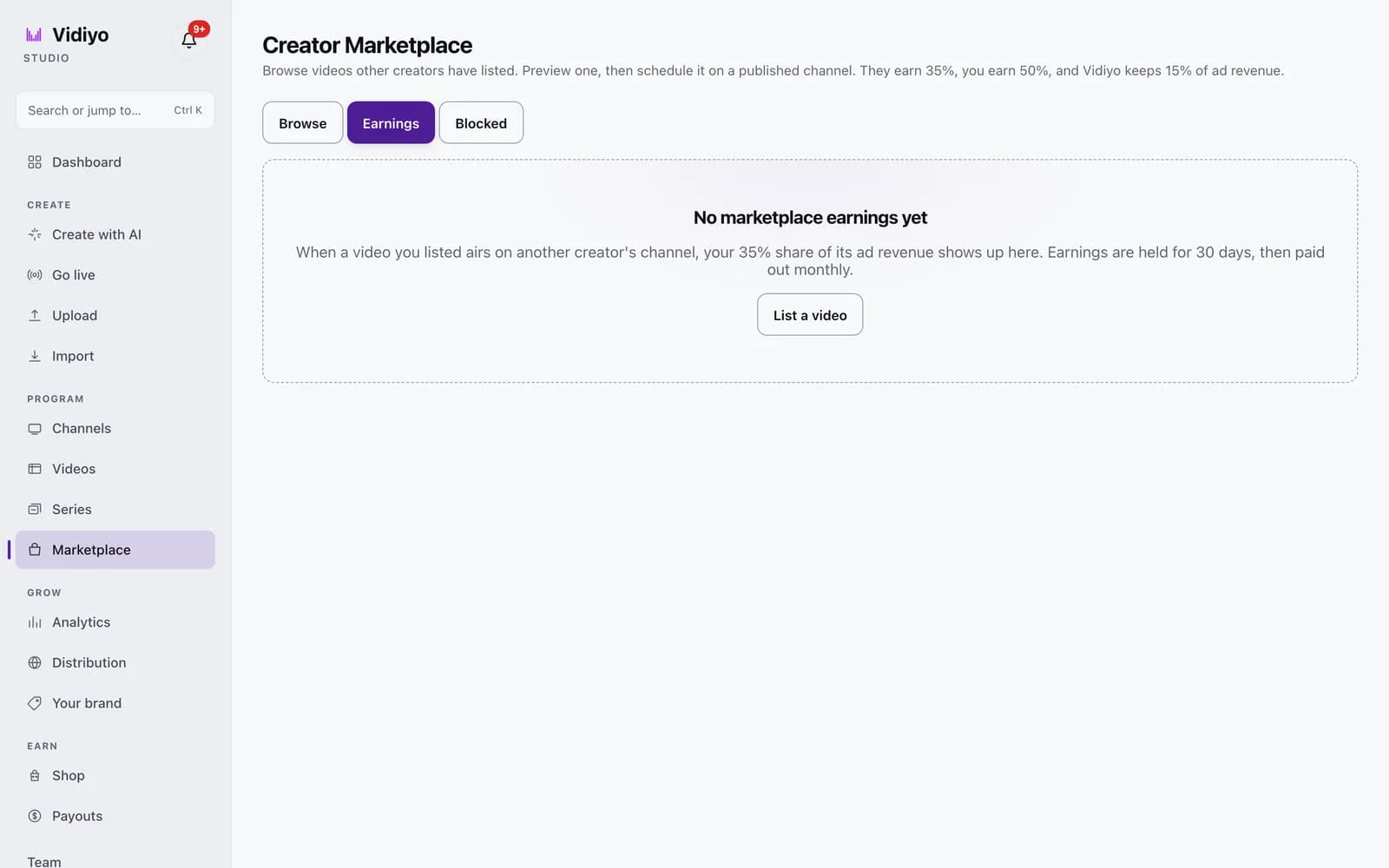
Back in Marketplace, open Earnings. Before your first airing, the tab reads No marketplace earnings yet. Once a listed video airs elsewhere, you see three balances: Holding (in the 30-day hold), Available (pays out on the monthly run), and Paid out. Below, switch between 7d, 30d, and 90d windows to see earnings and ad impressions per video.
Tips
- The Any channel filter uses the channel's orientation and maximum age rating, so a landscape channel does not show portrait listings.
- Music from a consumer video editor's personal-use library usually does not cover commercial syndication. If you are not sure, do not list the video.
- To take a video down, open it in Videos and click Withdraw from Marketplace. Blocks already scheduled keep playing for 14 days and you keep earning during that window; new scheduling stops at once. You can click Re-list on Marketplace during those 14 days.
- Marketplace earnings are paid through the same Stripe account as your ad revenue. Connect it on the Payouts page.
Quick answers
How much do I earn from the Creator Marketplace?
If you air someone else's video, you keep 50% of the ad revenue from that airing. If someone airs your video, you receive 35%. Vidiyo keeps 15% in both cases.
When are marketplace earnings paid?
Each airing's revenue is held for 30 days. Once the hold passes, the amount moves to Available and joins the next monthly payout run. The same US$20 minimum as ad revenue applies.
Do I give up copyright when I list a video?
No. You keep full copyright. The Vidiyo Open License grants other creators the right to air the video on their Vidiyo channels, and you can withdraw it later.
Can I list a video that has not finished processing?
No. Listing requires the video to be in the Ready state. The Creator Marketplace card does not appear on a video until processing finishes.
Why is a video marked Removed?
A video shows Removed when Vidiyo permanently withdrew it, usually after a copyright notice. It cannot be re-listed from Studio. If you believe this is a mistake, write to support@vidiyo.tv.
Open Studio
Upload a video, go live, or program your channel. Studio is free, and every guide here walks you through one task.