 Vidiyo
Schedule your week
Fill a channel's week grid in Vidiyo Studio: place videos, move and resize blocks, run Auto-fill on the gaps, and check the day in List view.
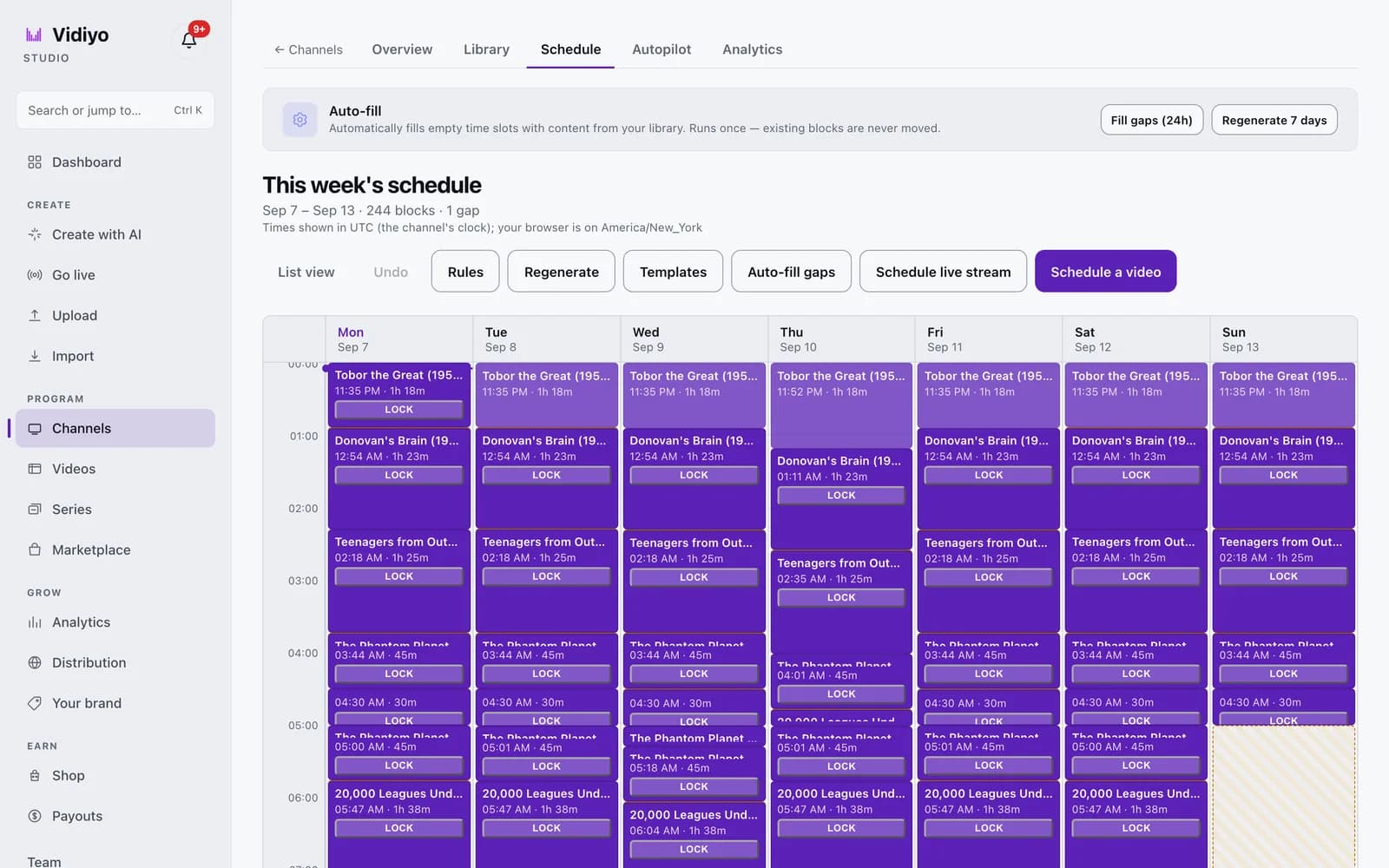
The Schedule tab is where a 24/7 channel gets its programming. Every item on the grid is a block: one video, one start time, one duration. The playout engine reads those blocks and plays each one when its start time arrives.
You can place every block by hand, let Auto-fill do it from the channel's library, or mix the two. Most creators pin a few blocks they care about and let Auto-fill cover the rest.
Before you start
- Create a channel and add videos to its Library. Auto-fill only picks from that library.
- Wait for videos to finish processing. Only ready videos can be scheduled.
Steps
1. Open the week grid
Open your channel and click the Schedule tab. This week's schedule shows seven day columns, Monday to Sunday, with hours down the left side.
The line under the heading tells you the date range, how many blocks the week holds, and how many gaps remain. The next line names the clock the grid uses: the channel's time zone, set in Rules. If your browser is in a different zone, the grid says so.
Each block shows its title, start time, and duration, plus a Lock button. Hatched space is a gap with nothing scheduled. The legend under the grid explains the colors: Video, Ad, and Promo.
2. Schedule a video
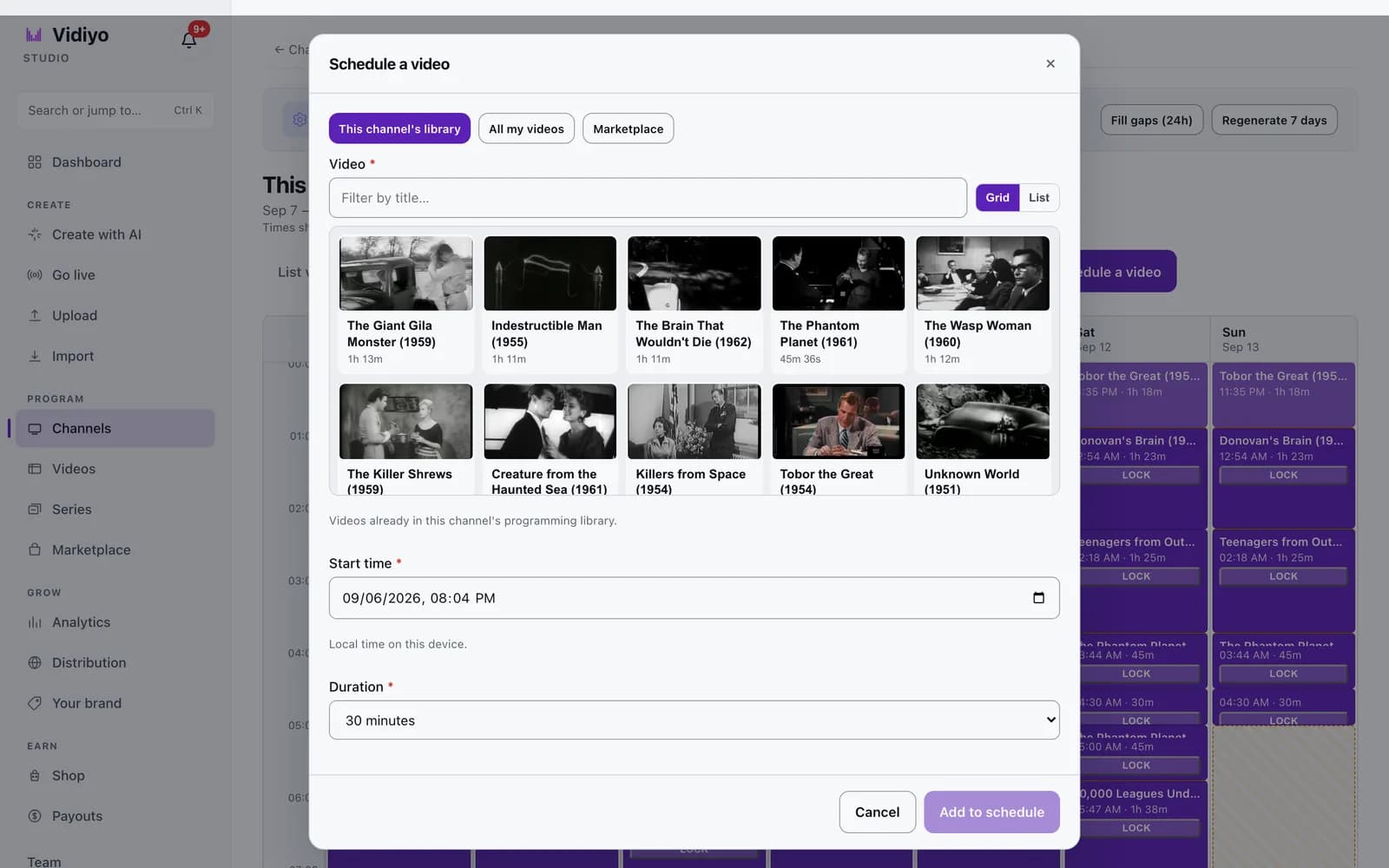
Click Schedule a video in the header, or click a gap on the grid to fill that exact slot. The Schedule a video dialog opens.
Pick a source with the three tabs at the top.
- This channel's library: videos already in this channel's programming library.
- All my videos: every ready video you own.
- Marketplace: videos other creators have listed. The owner earns 35% of ad revenue and you earn 50%.
Type in Filter by title to narrow the list, and switch between Grid and List with the toggle on the right. Click a video to select it.
Set Start time. This field uses local time on this device, even if the grid shows a different zone. Then set Duration. It snaps to the video's length when you pick one. The presets run from 30 seconds to 1 hour. If you choose a duration longer than the video, the video repeats until the block ends.
Click Add to schedule. The block appears on the grid. If it would overlap another block, the dialog names the conflicting block and asks you to move or shorten it first.
3. Move, resize, lock, and remove blocks
Drag a block to a new time or day. It snaps to 5-minute steps. Drag the bottom edge of a block to change its duration, from 5 seconds up to 24 hours. Stretching a block past its video's length makes the video repeat, and Studio warns you when that happens.
Click a block to open its editor. There you can change Start time and Duration, then click Save changes, or click Remove block.
Click Lock on a block to protect it. A locked block is planned around by Auto-fill and left alone by Regenerate. You can still move, resize, or remove it yourself. Click Locked to unlock it.
Undo in the header reverts your last grid edit. Its tooltip tells you what the next undo will do.
Keyboard works too. Arrow keys step between blocks and Enter opens the editor. Shift plus arrows move a block, Ctrl plus Up or Down resizes it. Delete removes, L locks, and Ctrl+Z undoes.
4. Fill the gaps with Auto-fill
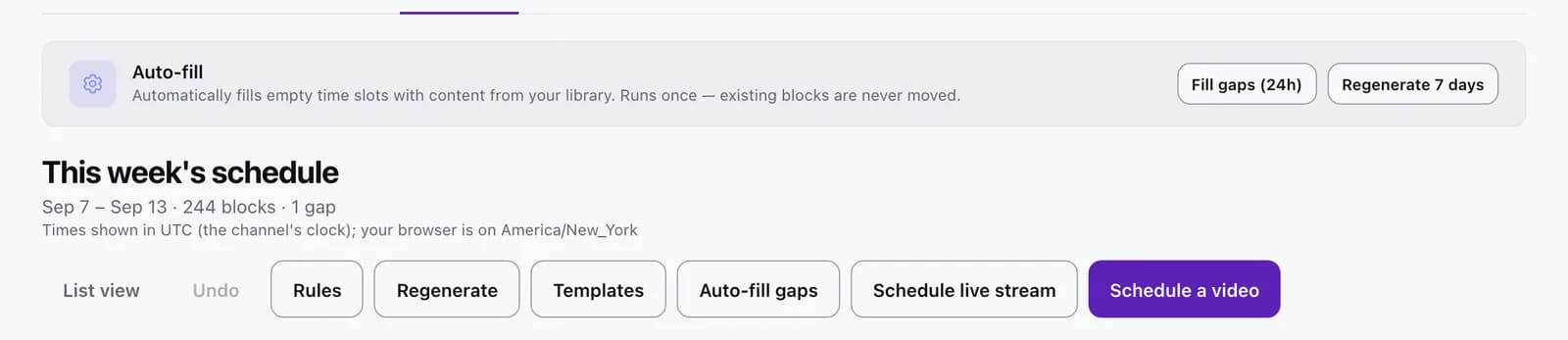
Above the grid, the Auto-fill banner offers two buttons. Fill gaps (24h) fills empty slots in the next 24 hours. Regenerate 7 days fills empty slots across the next 7 days. Both pick videos from the channel's library. Neither moves or removes a block you already placed.
When the current week has gaps, the header also shows Auto-fill gaps. It does the same as Regenerate 7 days: it fills the gaps over the next 7 days.
Auto-fill runs in the background. Studio confirms it has been queued, and the grid refreshes on its own as the new blocks land. The picker follows the channel's Rules: minimum time between repeats, a per-day cap, prime-time preference, and any dayparts you defined. When ads are on for the channel, it also places Ad break markers between videos.
5. Check today in List view
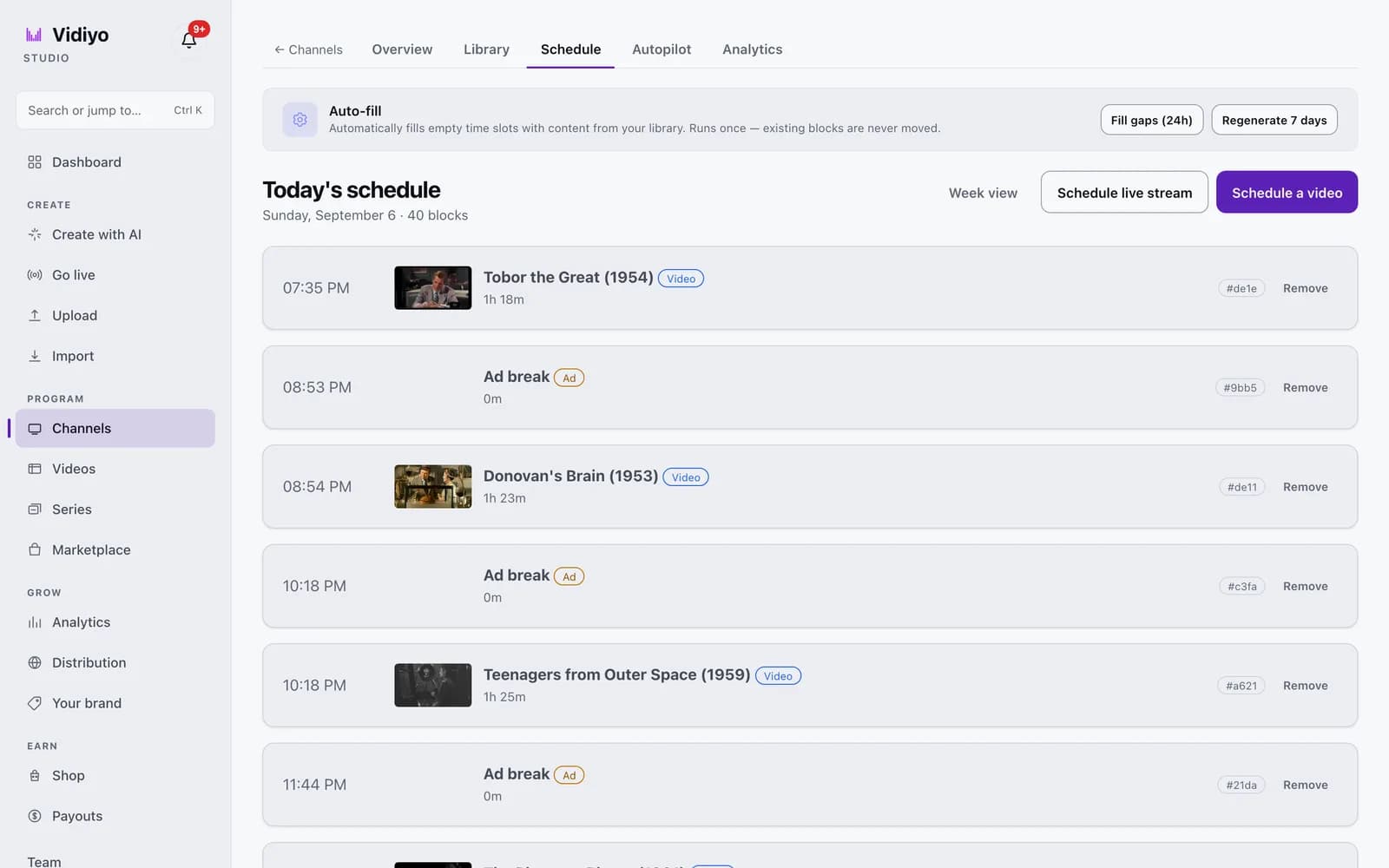
Click List view in the header. Today's schedule lists every block for the current day in order: start time, thumbnail, title, a Video or Ad badge, and duration. Each row has a Remove button.
Gaps appear inline with a Use this gap button, which opens the Schedule a video dialog with that gap's start and length already filled in. Schedule a video and Schedule live stream are here as well.
Click Week view to go back to the grid.
How the channel plays from the grid
The channel is always on air once it is published. At any moment, viewers who tune in see the block scheduled for that time, on Roku, Fire TV, Apple TV, web, iOS, and Android. When one block ends, the next one starts.
A video shorter than its block repeats until the block ends. A gap with nothing scheduled shows slate, so keep the grid full. The channel's own clock decides when a block airs. A block at 8:00 PM plays at 8:00 PM in the channel's time zone, wherever the viewer is.
Tips
- Lock the blocks you placed by hand before running Auto-fill or Regenerate. Locked blocks are never touched.
- The grid shows the channel's time zone, but Start time in the dialog uses your device's clock. Check both when they differ.
- Three or more different short clips in a row fold into one Short clips entry in the viewer guide. The grid tags those blocks so you can see it coming.
- Use Templates to save a week you like and lay it onto another week or another channel.
Quick answers
Why does the grid show UTC when I am in another time zone?
The grid runs on the channel's clock, which defaults to UTC. Click Rules and change Channel time zone to your zone. Prime time, the per-day cap, and dayparts all follow that same clock.
What happens if I leave a gap in the schedule?
Viewers see slate during the gap. If Auto-scheduling is on in the channel's settings, Studio fills empty slots from the library. You can also fill a gap yourself by clicking it, or run Auto-fill gaps.
Can I schedule a video that is still processing?
No. Only videos that have finished processing appear in the Schedule a video dialog. Upload the video, wait for it to reach ready, then schedule it.
Does Auto-fill move the blocks I placed?
No. Auto-fill and the two banner buttons only fill empty time. Existing blocks stay where they are. Regenerate in Replace mode does clear unlocked blocks in the window you choose, so lock the ones you want to keep.
How far ahead should the schedule be filled?
Keep at least the next 24 hours full so the channel never shows slate. Regenerate 7 days fills a week ahead, and Auto-scheduling keeps topping up empty slots when it is on.
Open Studio
Upload a video, go live, or program your channel. Studio is free, and every guide here walks you through one task.