 Vidiyo
Set scheduling rules
Tune how Auto-fill programs a channel in Vidiyo Studio: time zone, repeat gap, per-day cap, prime time, freshness, and dayparts, then regenerate the week.
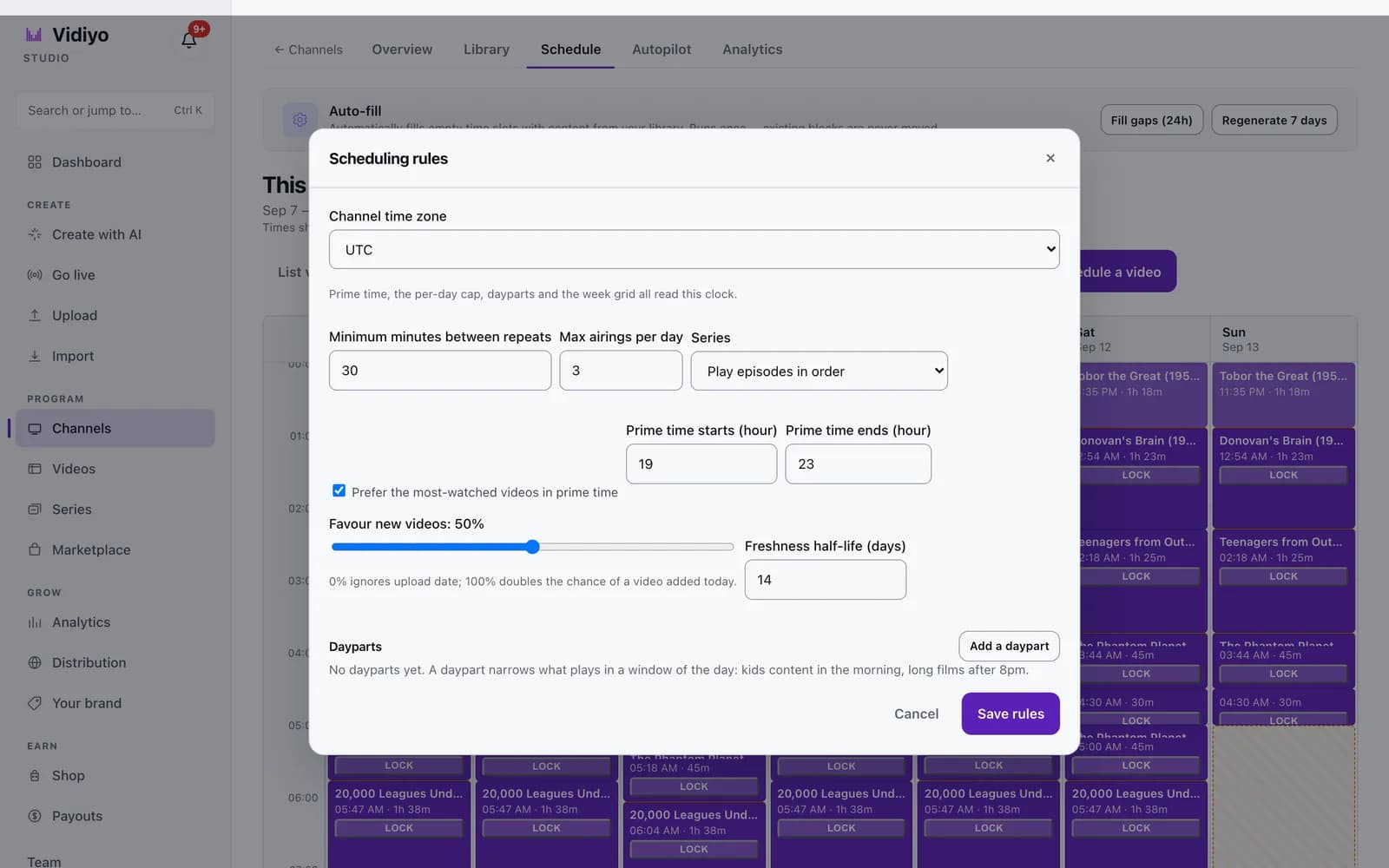
Scheduling rules tell Auto-fill how to pick videos when it fills a channel's gaps. They cover how often a video can repeat, what plays in prime time, and how much new uploads are favoured. Dayparts add a fourth control: which content is allowed in which part of the day.
Every channel starts with defaults. Change them when the schedule repeats too much or when you want films after 8pm. Change them too when kids content should only air in the morning.
Before you start
- Add videos to the channel's Library. Rules shape what Auto-fill picks; they cannot invent content.
Steps
1. Open Rules
Open your channel, click the Schedule tab, and click Rules in the week grid header. The Scheduling rules dialog opens.
2. Set the channel's time zone
Channel time zone is the clock the whole schedule runs on. Prime time, the per-day cap, dayparts, and the week grid all read it. New channels default to UTC. Pick the zone your audience lives in, so a block at 8:00 PM airs at 8:00 PM for them.
3. Control repeats
Minimum minutes between repeats is the shortest gap before the same video can air again. The default is 30 minutes. Max airings per day caps how many times one video plays in a channel-local day. The default is 3, and the field accepts 1 to 500.
The picker treats these as a ladder. It first avoids back-to-back repeats, then honours the minimum gap, then the per-day cap. If the library is too small to satisfy all three, it relaxes them in that order rather than leaving slate.
Series decides how episodes are handled. Play episodes in order treats a series as one entry that always offers its next episode, resuming after the last one that aired. Treat episodes as separate videos ignores episode order.
4. Shape prime time and freshness
Tick Prefer the most-watched videos in prime time. Set Prime time starts (hour) and Prime time ends (hour) in the channel's clock, 0 to 24. The default window is 19 to 23. Inside it, the picker plays the video with the most views whenever view data exists.
Favour new videos is a slider from 0% to 100%. At 0% the picker ignores upload date. At 100% a video added today has double the chance of being picked. Freshness half-life (days) sets how fast that boost fades. The default is 14 days; the field accepts 1 to 365.
5. Add dayparts
Under Dayparts, click Add a daypart. A daypart narrows what plays in a window of the day. Each daypart has a Name, Starts and Ends times in the channel's clock, and weekday checkboxes from Mon to Sun.
The filter fields decide what qualifies: Tags (any of, comma separated), Age ratings (comma separated), Min minutes, Max minutes, Series ids, and Video ids. A video matches when it passes every filter you filled in.
When nothing matches sets the fallback. Use the whole library falls back to any video when the filter finds nothing. Leave the time to slate keeps the window empty instead. Two dayparts cannot overlap on the same weekday. You can define up to 24.
Click Remove on a daypart to delete it.
6. Save and regenerate
Click Save rules. Studio confirms with Rules saved and reminds you to run Regenerate. Saving alone does not change blocks already on the grid.
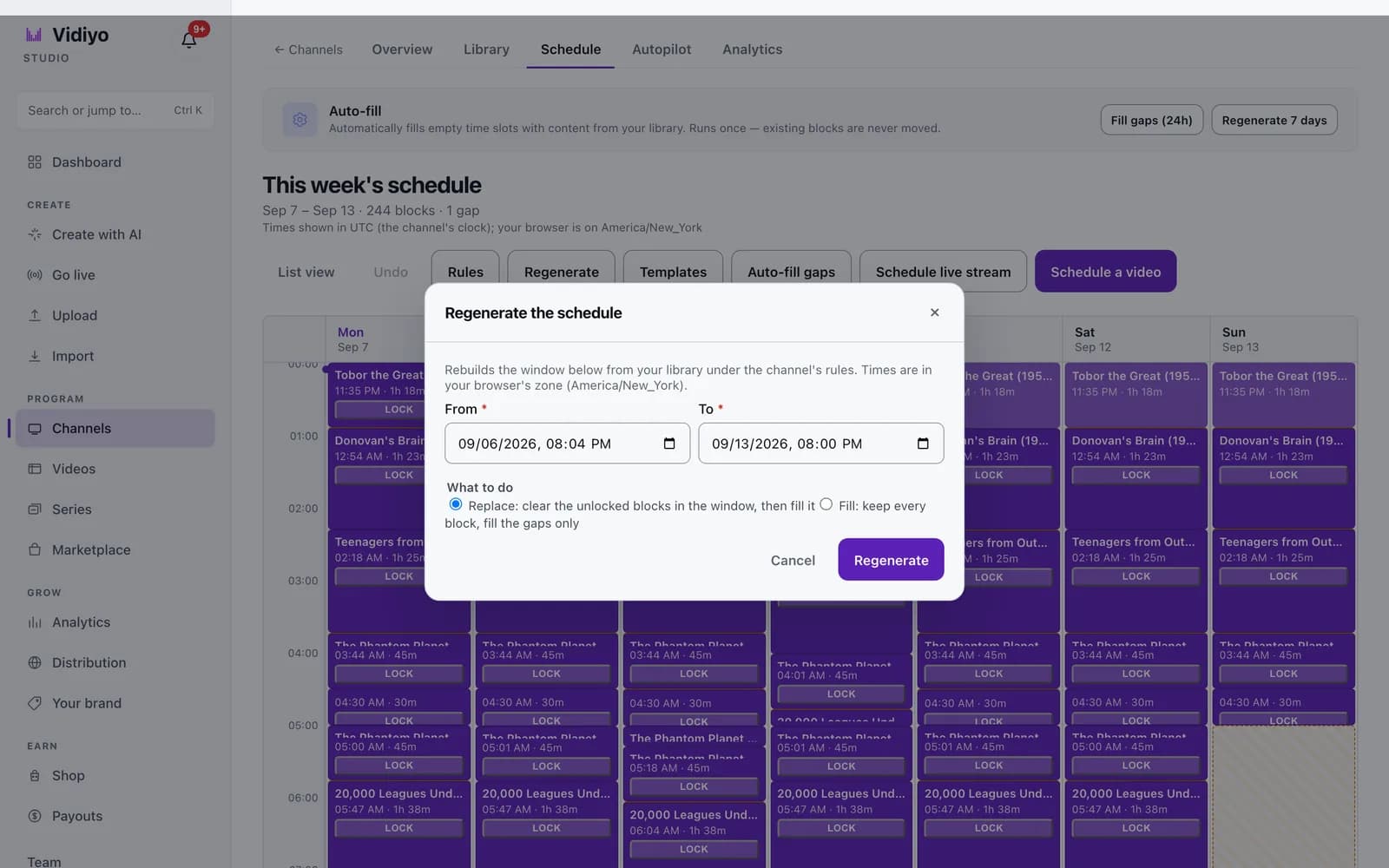
Click Regenerate in the week grid header. The Regenerate the schedule dialog asks for a From and To time in your browser's zone, at most 14 days apart. Choose what to do:
- Replace: clear the unlocked blocks in the window, then fill it. Locked blocks stay.
- Fill: keep every block, fill the gaps only.
Click Regenerate (or Fill gaps in Fill mode). The job runs in the background and the grid refreshes as blocks land.
Tips
- Lock the blocks you placed by hand before running Regenerate in Replace mode. Only unlocked blocks in the window are cleared.
- Regenerate is deterministic. Running it again on the same window with the same rules and library makes the same choices.
- A daypart window that spans a daylight saving change is as long as the wall clock says. The engine reads channel-local time at every instant.
- Short videos loop inside one block to keep the guide readable, but never past an ad break or a daypart change.
Quick answers
Why does my channel keep playing the same videos?
The library is too small for the repeat rules to hold. Add more videos, or lower Minimum minutes between repeats and raise Max airings per day. The picker relaxes the rules rather than leave slate, so a 10-video library will repeat no matter what you set.
How do I stop kids content from airing at night?
Add a daypart for the night hours with an Age ratings or Tags filter that matches your grown-up videos. Set its When nothing matches to Leave the time to slate. Add a second daypart for the morning with the kids filter.
Does changing the rules affect blocks already on the grid?
No. Rules only guide future picks. After saving, click Regenerate, choose a window, and pick Replace to rebuild it or Fill to only fill the gaps.
What time zone does the schedule use?
The one under Channel time zone in Rules. It defaults to UTC. The week grid, prime time, the per-day cap, and dayparts all use it. The Regenerate dialog is the exception: its From and To fields use your browser's clock.
Can I regenerate the whole month at once?
No. Regenerate covers at most 14 days per run. Pick a 14-day window, run it, then move the window forward and run it again.
Open Studio
Upload a video, go live, or program your channel. Studio is free, and every guide here walks you through one task.