 Vidiyo
Save and apply schedule templates
Save a week of blocks as a reusable template in Vidiyo Studio, then apply it to another week or another channel without overwriting what is there.
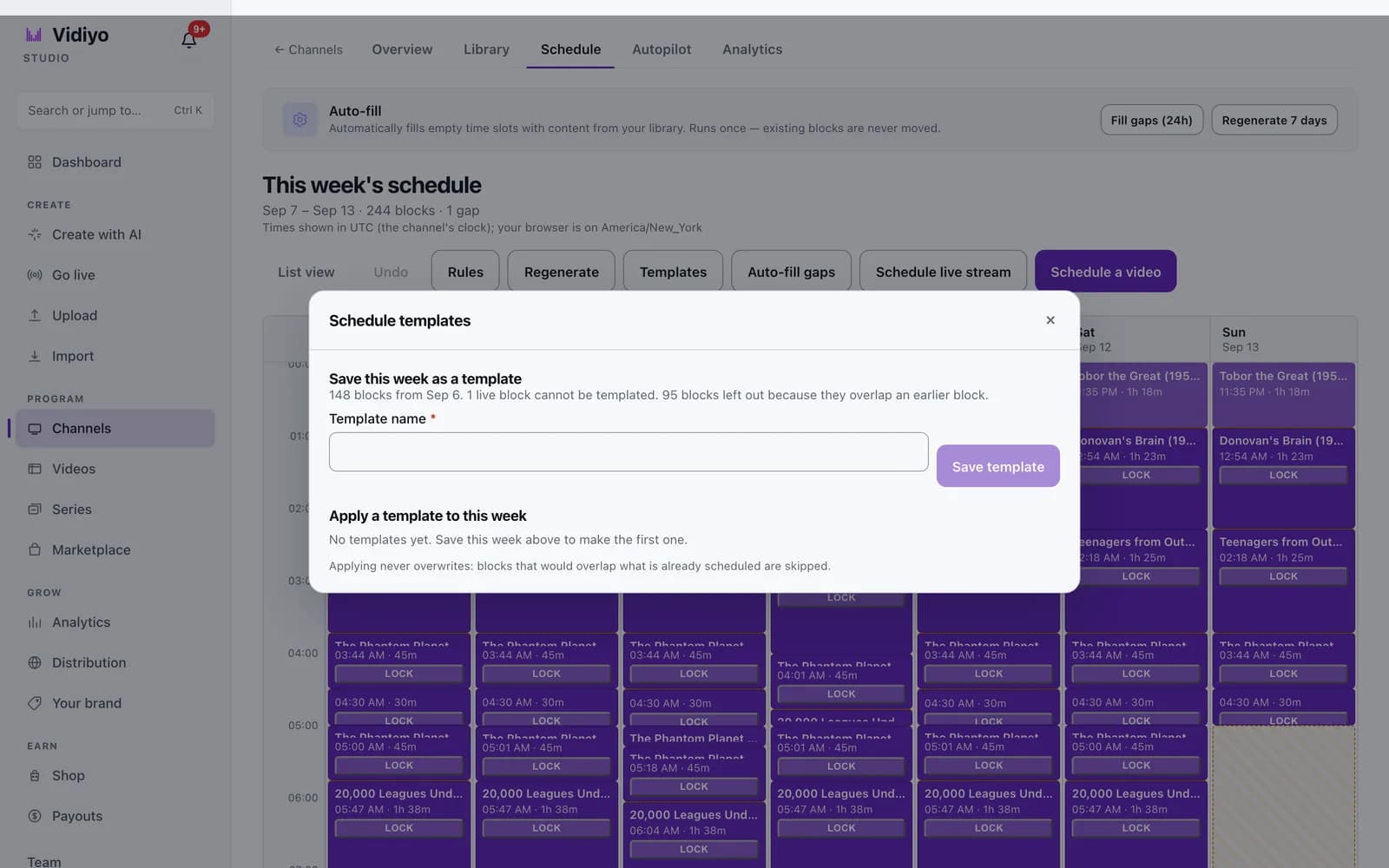
A schedule template is a copy of one week's blocks, stored relative to the start of the week. Save a week you like once, then lay it onto any future week of any of your channels. The blocks keep their day, start time, duration, and video.
Templates are the fastest way to give every week the same shape: the same movie slot on Friday night, the same morning block, the same ad rhythm.
Before you start
- Build a week on the Schedule tab that you want to reuse. The template captures the week the grid is showing.
Steps
1. Open Templates
On your channel's Schedule tab, click Templates in the header of the week grid. The Schedule templates dialog opens with two parts: save the current week, and apply a saved template.
2. Save this week as a template
Under Save this week as a template, the summary line reports what the capture holds. It counts the blocks from the week on screen and lists anything left out.
- Live blocks cannot be templated. A scheduled live stream is skipped and counted.
- A block that overlaps an earlier block is left out. The earlier block is kept.
Type a Template name, up to 120 characters, and click Save template. Studio confirms how many blocks it captured and how many it left out. The template then appears in the list below, ready to apply.
A template holds at most 500 blocks.
3. Apply a template to a week
Navigate to the channel and week you want to fill, open Templates, and find the template under Apply a template to this week. Each entry shows its name and block count.
Click Apply. Studio lays the template's blocks onto the week on screen, then reports how many it added. Applying never overwrites: a block that would overlap something already scheduled is skipped. A block whose video is no longer ready is also skipped. The confirmation tells you both counts.
Click Delete next to a template to remove it. Deleting a template does not touch any schedule.
Tips
- Clear or regenerate the target week before applying if you want the template to win. Existing blocks always take priority.
- Templates store video ids, so the same template works on any of your channels that can play those videos.
- Days in a template are fixed 24-hour steps from the start of the week. On a week with a daylight saving change, blocks after the change shift by one hour on the wall clock.
Quick answers
Why does the template have fewer blocks than my week?
Two kinds of block are dropped during capture. Live stream blocks cannot be templated. A block that overlaps the block before it is left out, because a template must hold a clean, non-overlapping sequence. The summary line above the name field lists both counts before you save.
Can I apply a template to a different channel?
Yes. Templates belong to you, not to a channel. Open the other channel's Schedule tab, click Templates, and apply. Videos that are no longer ready are skipped and reported.
Does applying a template replace the blocks already on the grid?
No. Applying only adds blocks into free time. Anything that would overlap an existing block is skipped. To start from a clean week, use Regenerate in Replace mode first, or remove the blocks by hand.
Can I edit a template after saving it?
Not directly. Apply it to a week, adjust the blocks on the grid, and save that week as a new template. Then delete the old one.
Open Studio
Upload a video, go live, or program your channel. Studio is free, and every guide here walks you through one task.