 Vidiyo
Schedule a live stream
Put a partner's HTTPS HLS feed on a channel's week grid in Vidiyo Studio with a title, start time, duration, and ad mode. The channel pulls it for that window.
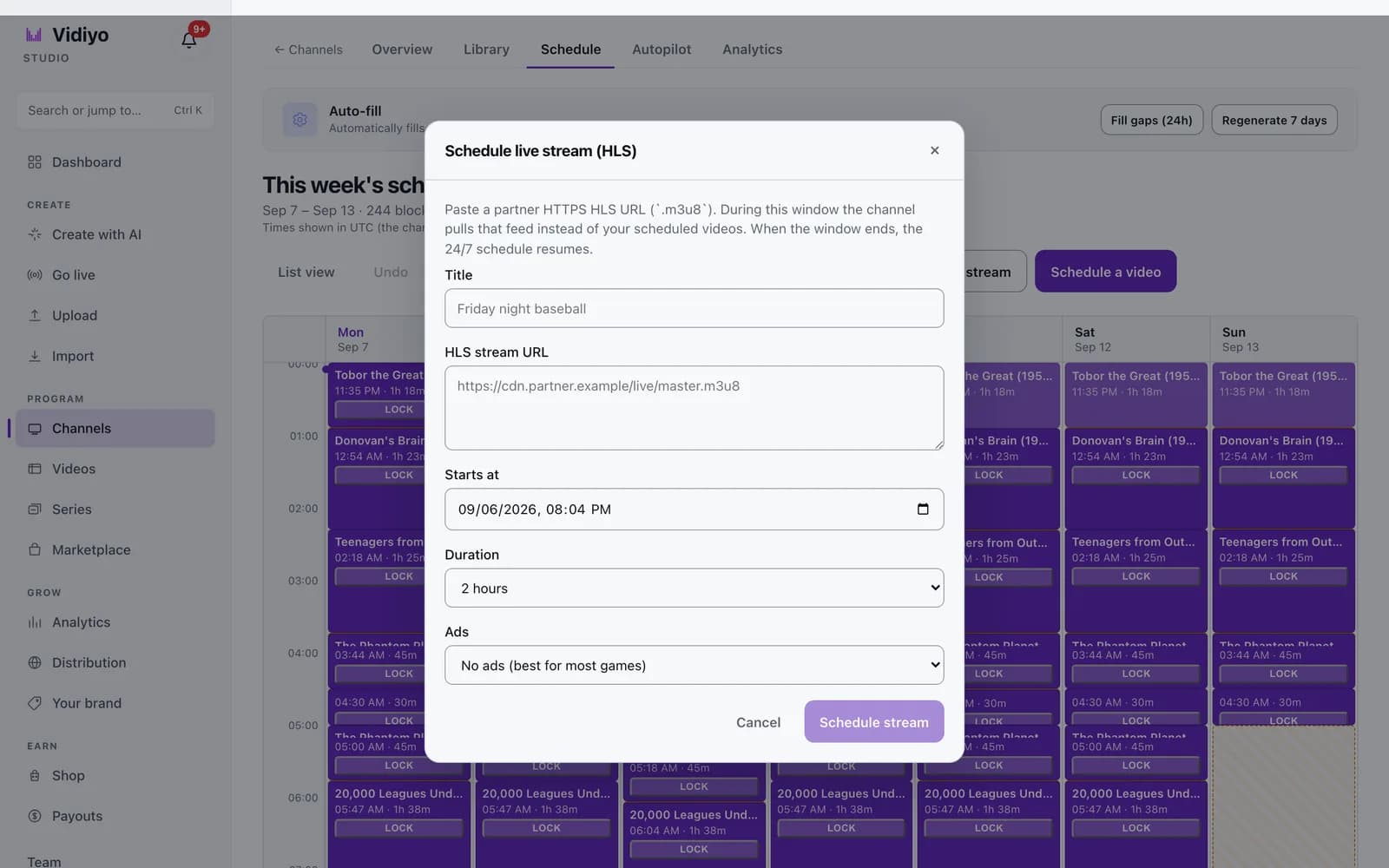
A 24/7 channel plays videos from its week grid, block by block. Schedule live stream adds a different kind of block: a window during which the channel pulls a live HLS feed from another server, such as a sports broadcaster, an event producer, or your own encoder's CDN output.
You give the dialog a title, the HTTPS HLS URL, a start time, a duration, and an ad setting. During that window the channel plays the feed instead of your scheduled videos. When the window ends, the 24/7 schedule resumes on its own.
Before you start
- The channel must be a 24/7 linear channel with a general audience rating. The Schedule live stream button does not appear on other channel kinds or on adult-tier channels. See Create a channel.
- Get the feed's master playlist URL from the partner. It must start with
https://and point at an.m3u8playlist. Plainhttp://links and non-HLS links are rejected. - Decide who sells the ads. If Vidiyo should insert ad breaks, the feed needs SCTE cues in its playlist. Without cues, choose no ads.
Steps
1. Open the channel's Schedule tab
In Studio, open Channels, pick the channel, and click the Schedule tab. This week's schedule shows the Monday to Sunday grid. In the header, next to Schedule a video, click Schedule live stream. The same button is available in List view.
The Schedule live stream (HLS) dialog opens. Its first line explains the rule: paste a partner HTTPS HLS URL (.m3u8), and during this window the channel pulls that feed instead of your scheduled videos. When the window ends, the 24/7 schedule resumes.
2. Name the block
Type a Title. This is what viewers see in the TV guide and on the channel page while the feed plays, so use the event name, for example the placeholder's Friday night baseball. The title can be up to 200 characters.
3. Paste the HLS stream URL
Paste the partner's playlist into HLS stream URL. Studio checks the address when you save: it has to be a public https:// URL and it has to contain .m3u8. If either check fails, the field shows Stream URL must be an HTTPS HLS master playlist (.m3u8).
4. Set the start time and duration
Starts at uses the clock on this device, even if the grid shows the channel's time zone. Pick the date and time the window opens.
Duration decides how long the channel stays on the feed. The presets run from 30 seconds through 1 minute, 5 minutes, 15 minutes, 30 minutes, and 1 hour to 2 hours, 3 hours, and 4 hours. 2 hours is selected by default. Choose a little more than the event's expected length so an overrun does not cut back to the grid early.
5. Choose the ad setting
Ads has two options.
- No ads (best for most games): the feed plays through untouched. Pick this when the partner sells its own ads or the feed has no ad markers.
- Vidiyo SSAI (needs SCTE cues in the feed): Vidiyo inserts ad breaks server-side where the partner's playlist carries SCTE cues. If the playlist has no cues, the check after saving fails with Vidiyo SSAI requires SCTE/HLS cues; none found on the media playlist.
6. Schedule the stream
Click Schedule stream. Studio confirms with Live stream scheduled and the note We are checking the HLS URL. The channel will pull it during this window. The block lands on the grid with a Live stream badge, and its detail view names it Live stream (HLS).
If the window overlaps another block, Starts at shows the conflict. Auto-scheduling fills empty time from the library, so the week is often full. Move or delete a block first, or turn auto-scheduling off in Channel settings.
How the takeover works
The block is stored on the channel's grid like any other block, with the feed URL, title, and ad mode attached. Right after you save, a background check fetches the playlist. It confirms the URL answers, that the playlist is not protected by DRM, and, when you chose Vidiyo SSAI, that ad cues are present. A feed that passes is marked ready. A feed that fails stays on the grid as a draft with the reason recorded, so fix the URL or the ad setting and save again.
When the start time arrives, the playout engine stops reading your video blocks and pulls the partner feed for every viewer, on web, in the TV apps, and on mobile. Viewers see the block's title in the guide. When the duration runs out, the engine returns to the next scheduled video. Nothing on the rest of the grid moves.
This is different from Go live. Go live publishes your own camera or encoder through Vidiyo's ingest and takes over the channel while you are on. Schedule live stream pulls a feed that already exists on another server, for a fixed window you set in advance.
Tips
- Schedule the block a few minutes before the event starts. The channel switches at the block's start time, not when the feed begins.
- Ask the partner for the master playlist, not a media playlist for one rendition. The check looks for
.m3u8and rejects playlists that declare DRM. - Leave the ad setting on No ads (best for most games) unless the partner has confirmed SCTE cues. A failed cue check leaves the block as a draft.
- Lock the blocks around the window if you plan to run Auto-fill afterwards. See Schedule your week and Scheduling rules.
- Keep a copy of the playlist URL. If the partner changes it, open the block and paste the new address.
Quick answers
Can I schedule a live stream on any channel?
No. The Schedule live stream button appears only on 24/7 linear channels with a general audience rating. Adult-tier channels and non-linear channel kinds do not offer it.
Does the URL have to be HTTPS?
Yes. The address must begin with https:// and contain .m3u8. Plain http:// links, RTMP addresses, and MP4 files are all rejected with Stream URL must be an HTTPS HLS master playlist (.m3u8).
How long can the window be?
The dialog offers presets from 30 seconds to 4 hours. Pick the closest preset above the expected length of the event. For a longer event, schedule a second block that starts when the first one ends.
What happens to my scheduled videos during the window?
They are not played and they are not moved. The channel shows the partner feed for the length of the block, then continues with the next video on the grid.
Who sells the ads during a live stream block?
That depends on Ads. With No ads (best for most games), the feed plays as delivered, including any ads the partner put in it. With Vidiyo SSAI (needs SCTE cues in the feed), Vidiyo fills the partner's cue points with its own ad breaks.
Open Studio
Upload a video, go live, or program your channel. Studio is free, and every guide here walks you through one task.