 Vidiyo
Converting a YouTube Library to a Linear FAST Channel
Convert a YouTube library to a linear FAST channel: rights checks, download workflows, which videos qualify, and how to build a 24/7 schedule from your catalog.

YouTube channels and FAST channels are different distribution formats. YouTube is on-demand; FAST is linear. But if you've been building a YouTube library for years, you likely have exactly the content library needed to launch a FAST channel.
This guide covers the mechanics of converting a YouTube library: the rights questions, the technical workflow, and the scheduling strategy.
The rights question first
Before anything technical, you need to understand what rights you have for FAST distribution.
Content you created and own
If you made the content and own all the rights (filming, music, graphics), you can distribute it anywhere, including FAST channels. Your YouTube upload doesn't restrict your rights; YouTube's Terms of Service grant YouTube a license to display your content but don't prevent you from distributing it through other platforms simultaneously.
What you own: Everything you created yourself. Original vlogs, tutorials, documentaries you produced, interview content where you hold the rights.
What you may not own even if you uploaded it: Music (if you licensed a track for YouTube using Content ID, that license likely doesn't cover linear broadcast), stock footage with YouTube-only licenses, clips you used under fair use (fair use analysis differs for broadcast vs. criticism/commentary).
Content with third-party music
YouTube's Content ID system allows you to use music under YouTube-specific deals. Those deals typically don't cover linear TV broadcast or FAST channels.
Before launching a FAST channel with content that has background music:
- Check the music license you used (was it a royalty-free/broadcast license or a Content ID/YouTube-specific license?)
- For original music you own: you're fine
- For licensed music: check whether your license includes "broadcast" or "linear streaming" rights
- For unlicensed music you got away with on YouTube: don't put it on FAST. This is a different risk profile.
The safest approach: use content with original music, music you have broadcast rights to, or music under Creative Commons licenses that permit commercial broadcast.
Licensed content
If your YouTube channel features content you licensed (e.g., archival footage, clips from other creators), that license may be YouTube-specific. Check the license terms for "linear streaming," "FAST," or "broadcast" rights. If unclear, contact the licensor.
Getting content out of YouTube
YouTube doesn't have an official bulk export API. Your options:
If you own the original files
The simplest option: use your original source files, not the YouTube-processed versions. If you have a library of original MP4s or MOVs, use those. They'll be higher quality than anything you download from YouTube.
yt-dlp (for your own content)
For content where you have the rights and YouTube is just where it lives, yt-dlp is the standard tool for downloading:
# Install yt-dlp
pip install yt-dlp

# Download best quality MP4 from a channel
yt-dlp -f "bestvideo[ext=mp4]+bestaudio[ext=m4a]/best[ext=mp4]" \
  --merge-output-format mp4 \
  https://www.youtube.com/@yourchannel

# Download a playlist
yt-dlp -f "bestvideo[ext=mp4]+bestaudio[ext=m4a]/best[ext=mp4]" \
  --merge-output-format mp4 \
  --download-archive downloaded.txt \
  https://www.youtube.com/playlist?list=YOUR_PLAYLIST_ID
YouTube's Terms of Service technically prohibit downloading videos except where YouTube explicitly provides an official download function. In practice, yt-dlp is widely used to download creators' own content for redistribution. Use your judgment.
File quality note: YouTube recompresses uploads. The downloaded file is not your original. If you have originals, use them. If you don't, the yt-dlp download is usually acceptable quality (typically 1080p or 1440p for modern YouTube).
YouTube Studio bulk export
YouTube doesn't offer a bulk video export tool. The only official export is individual video download from YouTube Studio, which is tedious for large libraries.
Preparing content for FAST
File format
Most FAST platforms accept:
- MP4 (H.264 or H.265/HEVC)
- MOV (H.264)
- MXF (broadcast format)
H.264 MP4 at 1080p is the safe choice for maximum compatibility.
Minimum bitrate
For FAST distribution:
- 1080p: minimum 8 Mbps (higher is better for source files; platforms re-encode for delivery)
- 720p: minimum 4 Mbps
- 480p: minimum 1.5 Mbps
YouTube-downloaded files at "best quality" are usually 8-15 Mbps at 1080p, which is acceptable.
Audio
Stereo AAC or MP3 at 192 Kbps minimum. Most YouTube downloads include stereo audio.
Captions
YouTube has auto-generated captions for most videos. You can download these as SRT files from YouTube Studio: go to the video, click the Subtitles menu, and download the auto-generated captions.
You'll need captions for every piece of content distributed on FAST channels. See FCC captions requirements.
Evaluating your YouTube library for FAST
Not all YouTube content translates well to linear TV. Before building your schedule, audit your library:
Best for FAST:
- Longer form content (10+ minutes). Short videos create scheduling complexity.
- Series with natural episodes. Viewers can tune into a series channel.
- Evergreen content: tutorials, documentaries, cooking, travel. Content that doesn't age quickly.
- High production value. If it looked great on YouTube, it looks great on TV.
Problematic for FAST:
- Very short videos (under 3 minutes). Hard to schedule and creates a poor viewer experience.
- Heavily time-referenced content ("as of this filming in 2021..."). Ages poorly on a loop.
- Live stream recordings with dead time: chat overlays, long setup periods, and similar.
- Reaction content using third-party clips. Rights are fragile for broadcast.
Edit before uploading:
- Cut YouTube-specific intros/outros ("Don't forget to like and subscribe")
- Trim dead air at the start and end
- Remove YouTube-specific interstitials or sponsor reads that reference other platforms
Building a schedule from a YouTube library
With a typical YouTube catalog of 50-200 videos, here's how to approach scheduling:
Step 1: Categorize your content. Group videos by type (tutorial, interview, documentary) and quality level (high-value, standard, filler).
Step 2: Identify your "primetime" content. Your best 20-30 videos get the premium schedule slots (evening hours, weekends).
Step 3: Build a weekly schedule. Use your top content in primetime. Mid-tier content fills daytime hours. Lower-tier content fills overnight.
Step 4: Configure auto-fill. Let the auto-scheduler fill any remaining gaps with your content library, set to avoid repeating the same video within 24 hours.
Step 5: Set a repeat window. Once a video has aired, how soon can it air again? For a 100-video library, you might allow repeats after 48 hours to avoid running dry. For a 500-video library, you can push this to 7 days.
What the import looks like in Studio
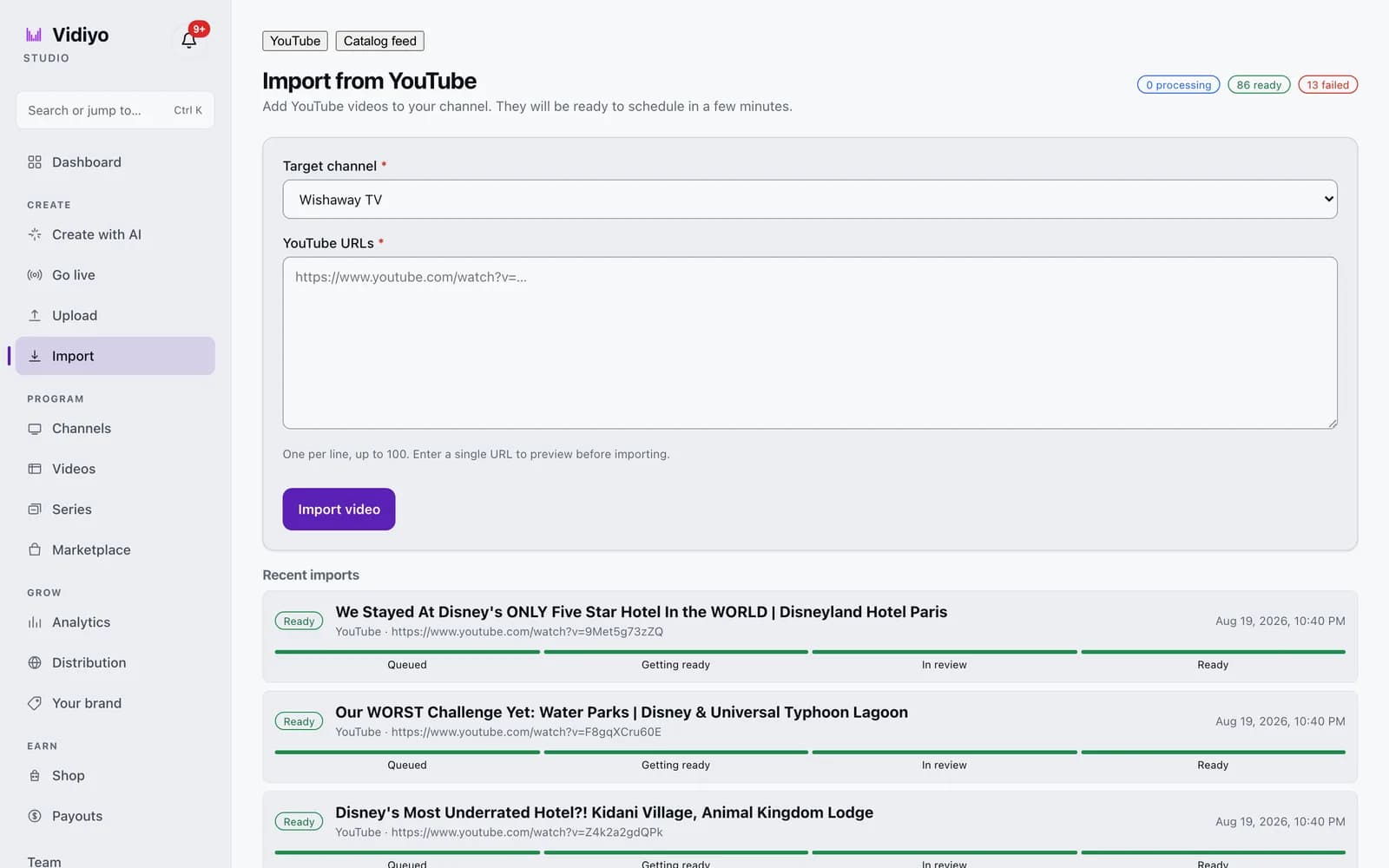
The Import page takes a target channel and a list of YouTube URLs, one per line, up to 100 at a time. Each video moves through four states you can watch from the same page: Queued, Getting ready, In review, and Ready. A single URL previews before it imports, which is the fast way to check that a video is public and downloadable before you paste a whole playlist.
The clicks, the catalog feed option for large libraries, and what a failed import means are in Import videos.
Simultaneous YouTube and FAST distribution
You can distribute the same content on YouTube and a FAST channel simultaneously. There's no exclusivity requirement from either platform unless you've signed a specific exclusivity agreement.
Some operators go FAST-first (premiere on the FAST channel, then put it on YouTube the following week). This creates urgency for FAST viewers and separates the audiences.
Others run true simultaneous distribution. The same content, two different audiences, two different ad stacks.
Operator takeaway
Treat this page as a working checklist, not a one-time read. Revisit it when you change schedule density, ad load, distribution targets, or source quality. Small weekly improvements compound faster than a single big relaunch. If you need a free place to run the channel while you learn, start creating on Vidiyo.
What's next
- How to start a FAST channel: end-to-end launch steps
- En Español: convertir YouTube en canal FAST
- Short-form to linear TV: repurpose clips into a channel
- How to repurpose content for feed, live, and TV
- Free FAST channel platforms: no monthly fee options
- Vidiyo for YouTubers: free FAST channel path if you are ready to import and publish
- FAST revenue calculator: model hours and CPM assumptions
- Channel scheduling for 24/7 playout
- FCC captions requirements for FAST channels
- FAST industry statistics
- What is FAST TV: the model you are moving into
Ready to launch your TV channel?
Vidiyo handles streaming, ads in the stream, the TV guide, and apps on every screen so you can focus on programming.