 Vidiyo
Watch on TV apps
Find the Vidiyo app for Roku, Apple TV, iPhone, or Android on the Apps page, watch without an account, and sign a TV in with a code at vidiyo.com/activate.
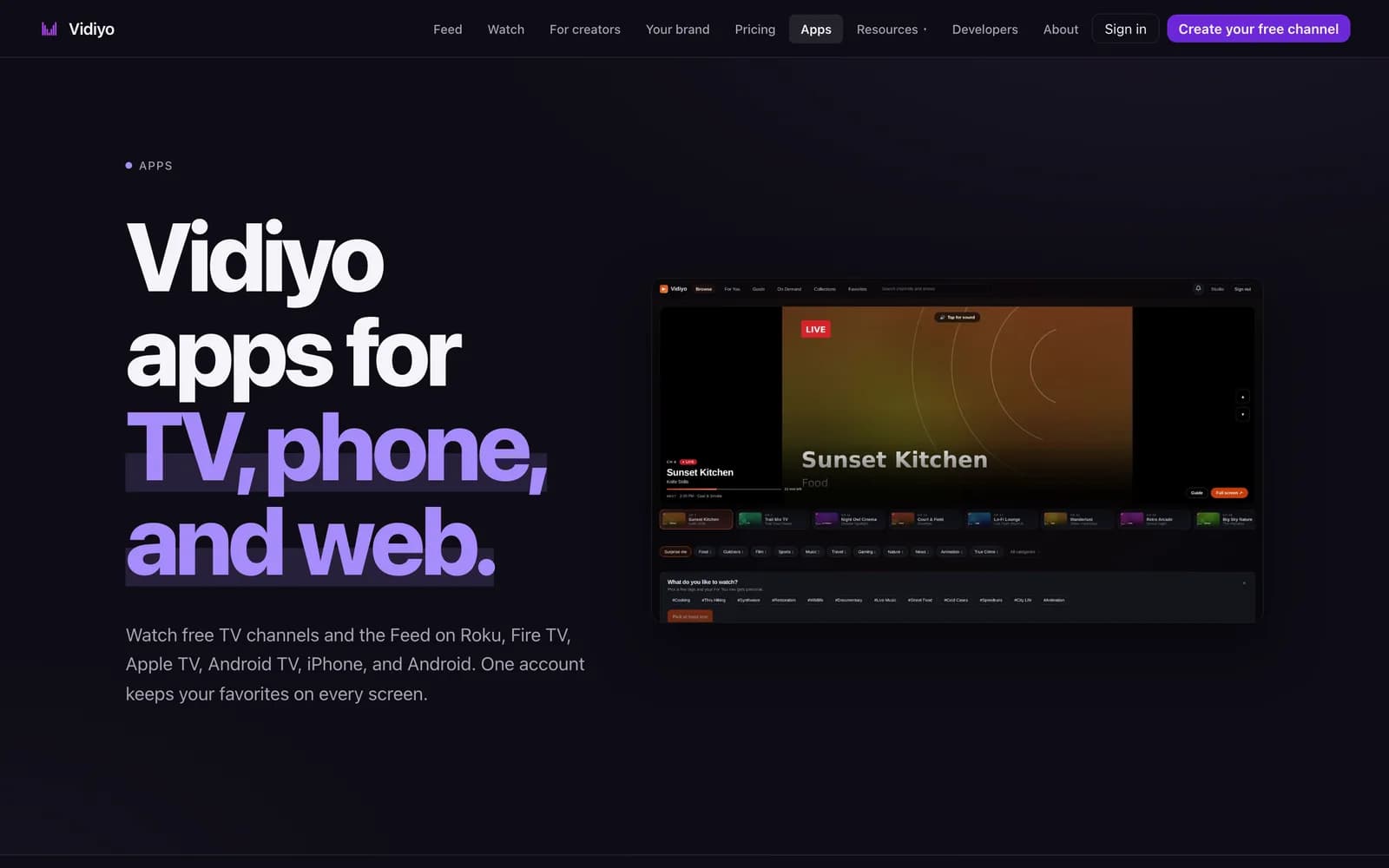
The same channels you watch at vidiyo.com play in the Vidiyo apps for TVs and phones. The Apps page lists every platform and tells you which stores have the app today and which are still coming.
Watching is free and needs no account on any screen. When you do sign in on a TV, you never type a password with a remote. The TV shows a short code, you enter it at vidiyo.com/activate on your phone or computer, and the TV signs in on its own.
Before you start
- Check your TV or streaming device against the platform list below. Not every store listing is live yet.
- Signing in is optional. You only need a Vidiyo account for favorites, follows, and reminders. See Create your account.
- Keep a phone or computer nearby for the sign-in code. The TV cannot complete sign-in by itself.
Steps
1. Find your screen on the Apps page
Open vidiyo.com/apps. Under Pick your screen., one card per platform shows the device name, a one-line description, and either a store link or a Coming soon notice. As of this writing the cards read:
- iPhone & iPad: Get it on the App Store.
- Android: Get it on the Google Play.
- Roku: Get it on the Roku Channel Store.
- Apple TV: Get it on the App Store. Free live TV in 4K on tvOS, no sign-in required to watch.
- Fire TV: Coming soon to the Amazon Appstore.
- Android TV: Coming soon to the Google Play. This is a separate listing from the Android phone app.
- Samsung: Coming soon to the Samsung Seller Office.
- LG: Coming soon to the LG Seller Lounge.
- Vizio: Coming soon to the Vizio SmartCast. This is the Vidiyo app, not a WatchFree+ channel.
2. Install the app from its store
Click the Get it on link for your platform to open the store listing, then install from there as you would any other app.
If your platform shows Coming soon, there is no listing to install yet. Watch in a browser in the meantime; see step 5.
3. Start watching
Open the app and a channel starts playing. No account is needed to watch live channels, the TV guide, or On Demand. On a TV, the guide plays while you browse, and the arrow keys change channels, like real TV. On a phone, the same channels, short clips, and your favorites are all in one app.
4. Sign the TV in with a code
To bring favorites and follows to a TV, open sign-in in the TV app. The TV shows a web address, vidiyo.com/activate, and a short code.
On your phone or computer, go to vidiyo.com/activate. The page reads Activate your Vidiyo device and Type the code that is showing on your TV screen. Enter the code in the Code field. As soon as you leave the field, the page looks the code up and shows which device it belongs to, for example Looks like Apple TV or Looks like Roku. Check that it matches, then click Activate this TV.
If you are not signed in on the web yet, the page asks you to sign in to Vidiyo first; you need an account before you can authorize a TV. Once the code is accepted, the page reads TV activated and Go back to your TV. It should be signed in within a few seconds. The TV picks up the sign-in on its next check.
5. Watch in a browser instead
Every platform's content also runs at vidiyo.com with nothing to install. The Apps page says so under No install needed., with Watch now and Open the TV guide buttons. Live channels, the TV guide, On Demand, and the Feed all work in a current browser. See Watch free TV for a tour of each screen.
How TV sign-in works
Your password stays off the TV. When you open sign-in, the TV asks Vidiyo for a pair of codes: an 8-character code for you to type, drawn from letters that are hard to confuse with one another, and a longer code it keeps for itself. The TV displays the short code and starts asking Vidiyo every 5 seconds whether that code has been approved.
Entering the code at vidiyo.com/activate while signed in to your account approves it. On the TV's next check, Vidiyo hands it a session tied to your account, and the app switches to your favorites and follows. A code is valid for 10 minutes. If it runs out, the TV reports That code expired and offers Get a new code, and the web page no longer recognises the old one.
Some TV apps show a link that already contains the code. Opening it lands on vidiyo.com/activate with the Code field filled in, so you only confirm the device and click Activate this TV.
Tips
- Type the code exactly as shown. The page uppercases it for you. If it reads Code not recognised, double-check the code on your TV; a new code may have replaced it.
- Sign in on the web first, then open vidiyo.com/activate. The approve step needs your web session.
- Look at the Looks like line before you approve. If it names a device you do not recognize, do not activate it.
- One account works on every screen. Favorites you save on the web show up on the TV after you activate it, and the reverse.
- Bookmark vidiyo.com on a smart TV whose app is still Coming soon.
Quick answers
Do I need an account to watch on a TV?
No. Live channels, the guide, and On Demand play without signing in on every platform. Sign in only when you want your favorites and follows on that TV.
Which TV apps are available right now?
The Apps page is the source of truth. As of this writing, Roku and Apple TV have live store listings, along with the iPhone & iPad and Android phone apps. Fire TV, Android TV, Samsung, LG, and Vizio are marked Coming soon.
Where do I enter the TV code?
At vidiyo.com/activate. Type the code in the Code field, confirm the Looks like line names your device, and click Activate this TV. You need to be signed in to your Vidiyo account on that browser.
The code stopped working. What now?
Codes expire after 10 minutes. On the TV, choose Get a new code and enter the new one on the web page. A code that has already been used cannot be entered again.
Can I watch a Vidiyo channel on another website?
Yes, when a creator has embedded their channel. Creators can place a small Vidiyo player for a published channel on their own site. It plays without an account and links back to the channel on Vidiyo, so you can open the full page from there.
Watch free live TV now
Creator channels stream 24/7 in your browser and on Roku, Fire TV, Apple TV, iOS, and Android. No account needed.