 Vidiyo
Watch free TV
Watch live channels, the TV guide, categories, channel pages, On Demand, and the Feed on vidiyo.com without an account, and see where ads and favorites fit in.
Vidiyo is free TV in a browser. Live channels run 24 hours a day, On Demand holds full-length titles you can start any time, and the Feed plays short vertical clips. Ads pay for it. There is no subscription.
You do not need an account to watch any of it. Signing in adds favorites, follows, reminders, likes, and chat. This guide walks through each screen at vidiyo.com. The same channels play in the apps; see Watch on TV apps.
Before you start
- Open vidiyo.com in a current browser. Nothing to install.
- Channels start muted. Browsers block sound until you interact with the page, so expect one click for audio.
- An account is optional. Create one at Create your account when you want favorites, follows, reminders, or chat.
Steps
1. Start with On Now
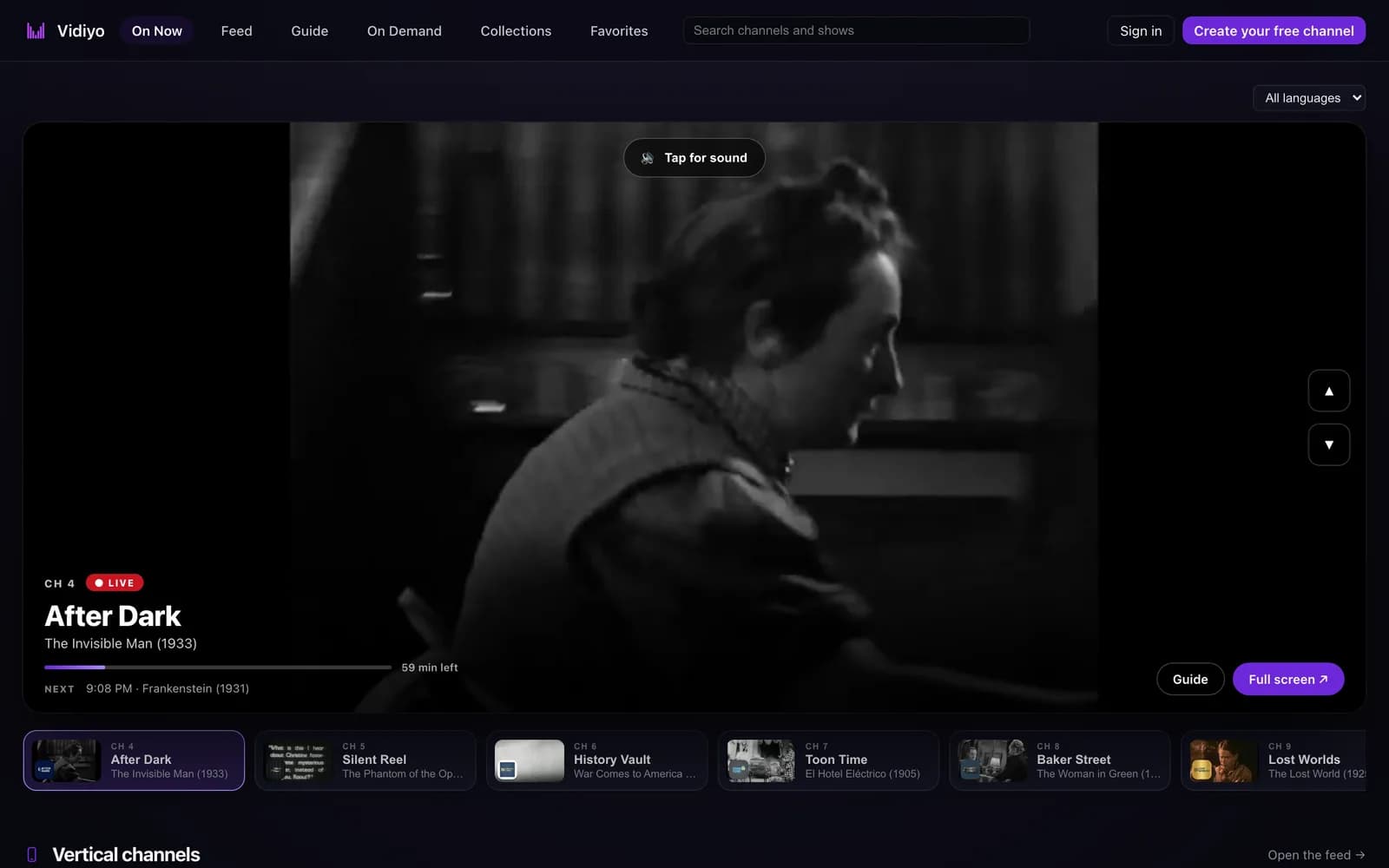
Click On Now in the top bar. A channel starts playing at once. Click Tap for sound to hear it, or press m on the keyboard.
The lower left corner of the player shows the channel number as CH 4, a LIVE badge, the channel name, the program playing, and a progress bar with the minutes left. The NEXT line names what follows and when. Use the up and down arrows on the right edge of the player, or the up and down arrow keys, to change channels in lineup order. The row of tiles under the player shows every channel with its current program; click a tile to jump to it.
Guide opens the full schedule. Full screen opens that channel's own page with the player at full width. Under the channel row, Vertical channels shows the portrait lineup with an Open the feed link. The All languages dropdown above the player narrows the lineup to one language.
2. Read the TV guide
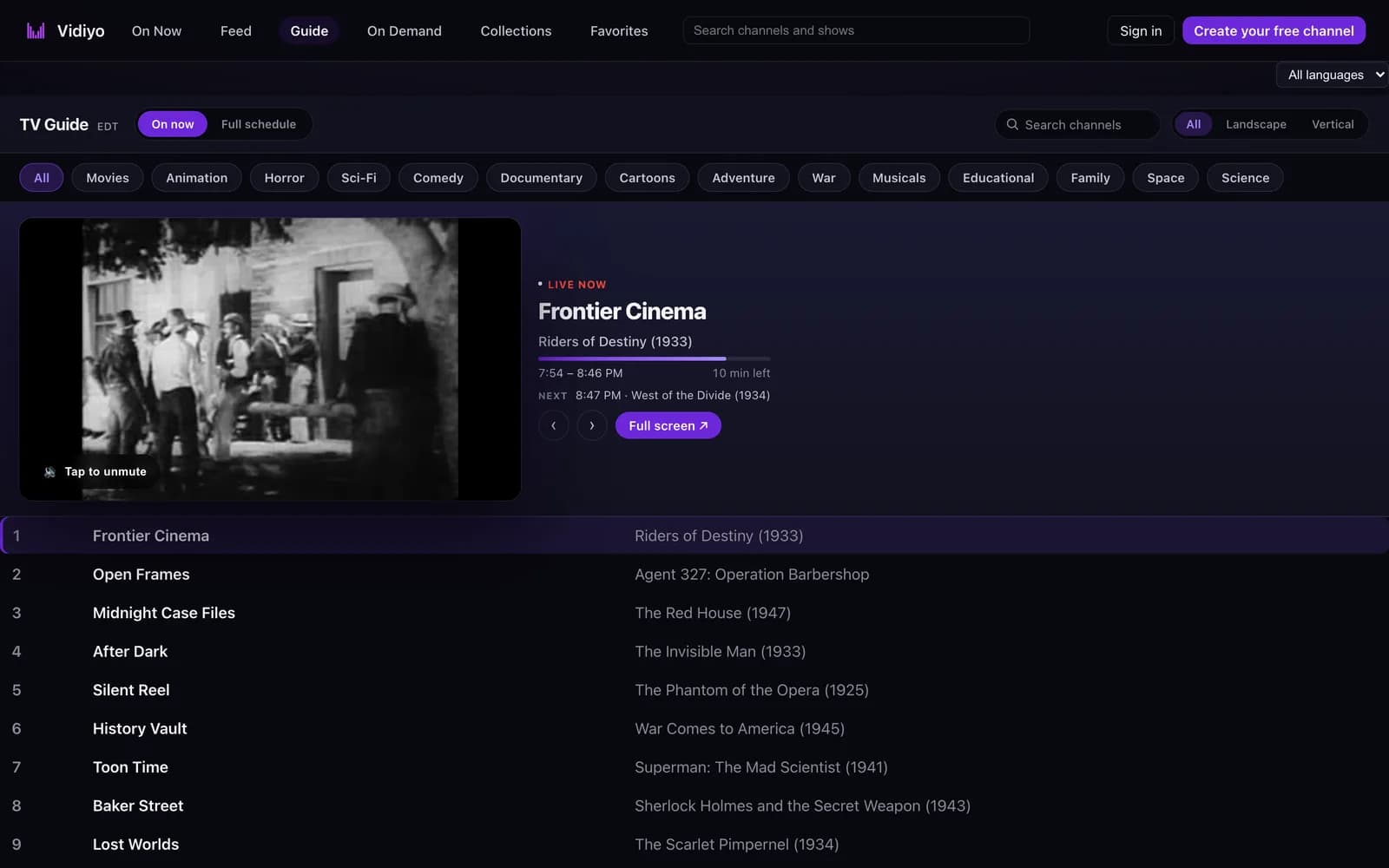
Click Guide, or go to /guide. The heading TV Guide shows the time zone the guide uses, taken from your browser. Two views sit beside it. On now is the default: a numbered list of every channel with the program playing right now. Full schedule switches to the time grid for a whole day, with Previous day and Next day arrows to move through dates.
Above the list, the hero player plays the highlighted channel. It shows LIVE NOW, the channel name, the program title, its time range, a progress bar with the minutes left, and a NEXT line. Arrows step to the previous or next channel, Full screen opens the channel page, and Tap to unmute turns sound on. Click any channel row to move the hero player to it.
Filter the lineup with the category chips, the All, Landscape, and Vertical orientation buttons, or the Search channels field. When a live event or premiere is coming up, the guide lists it in its own rail above the channels. Click a program to see its details. Later programs offer Remind me, and a live event offers Open live event. Reminders need an account. When you are signed in, your favorite channels float to the top of the list.
3. Browse channels and categories
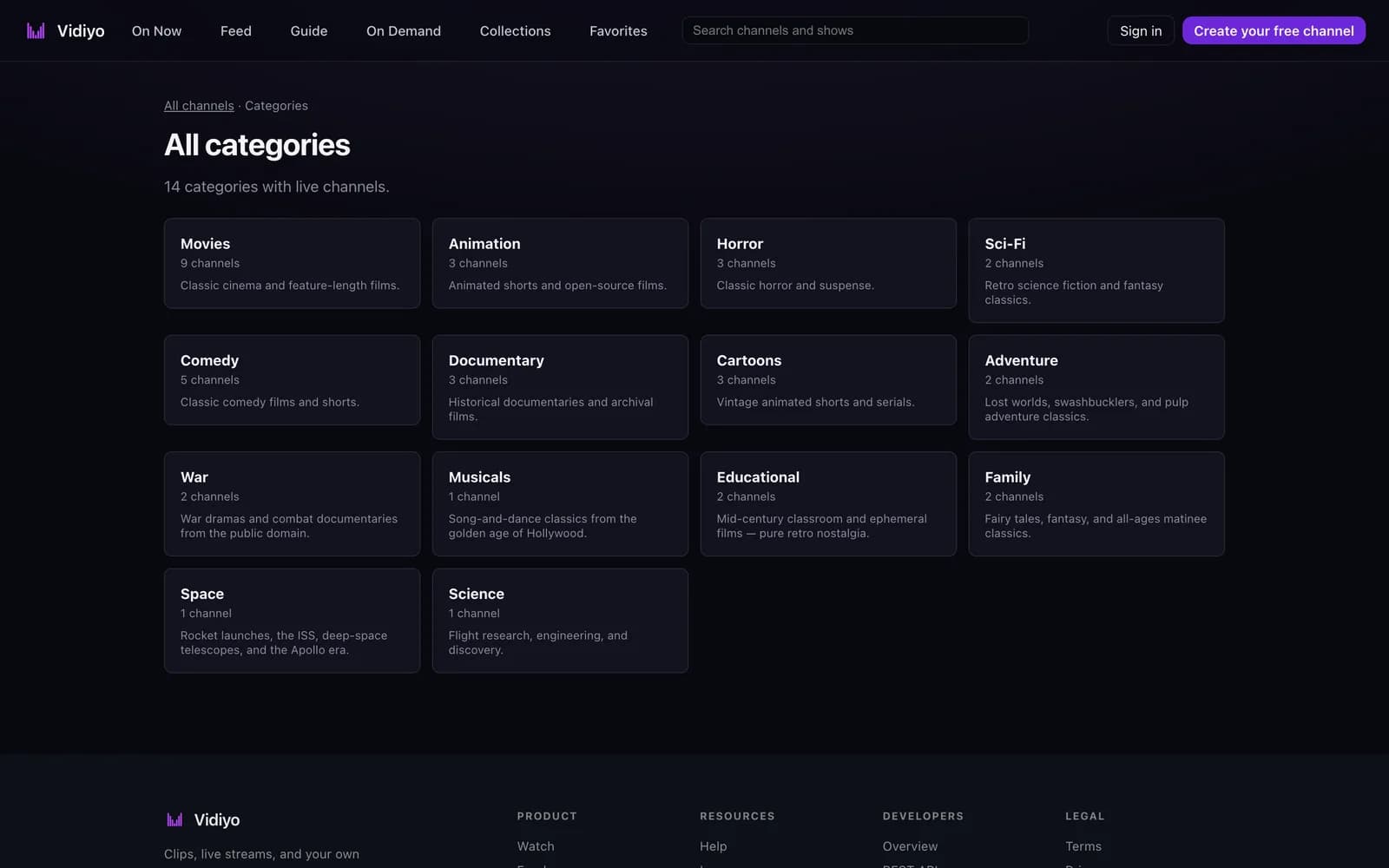
The search box in the top bar reads Search channels and shows and finds both. For a broader look, open All categories. The page counts how many categories have live channels and shows a card for each: the category name, how many channels it holds, and a one-line description. Click a card to see the channels in that category.
4. Open a channel page
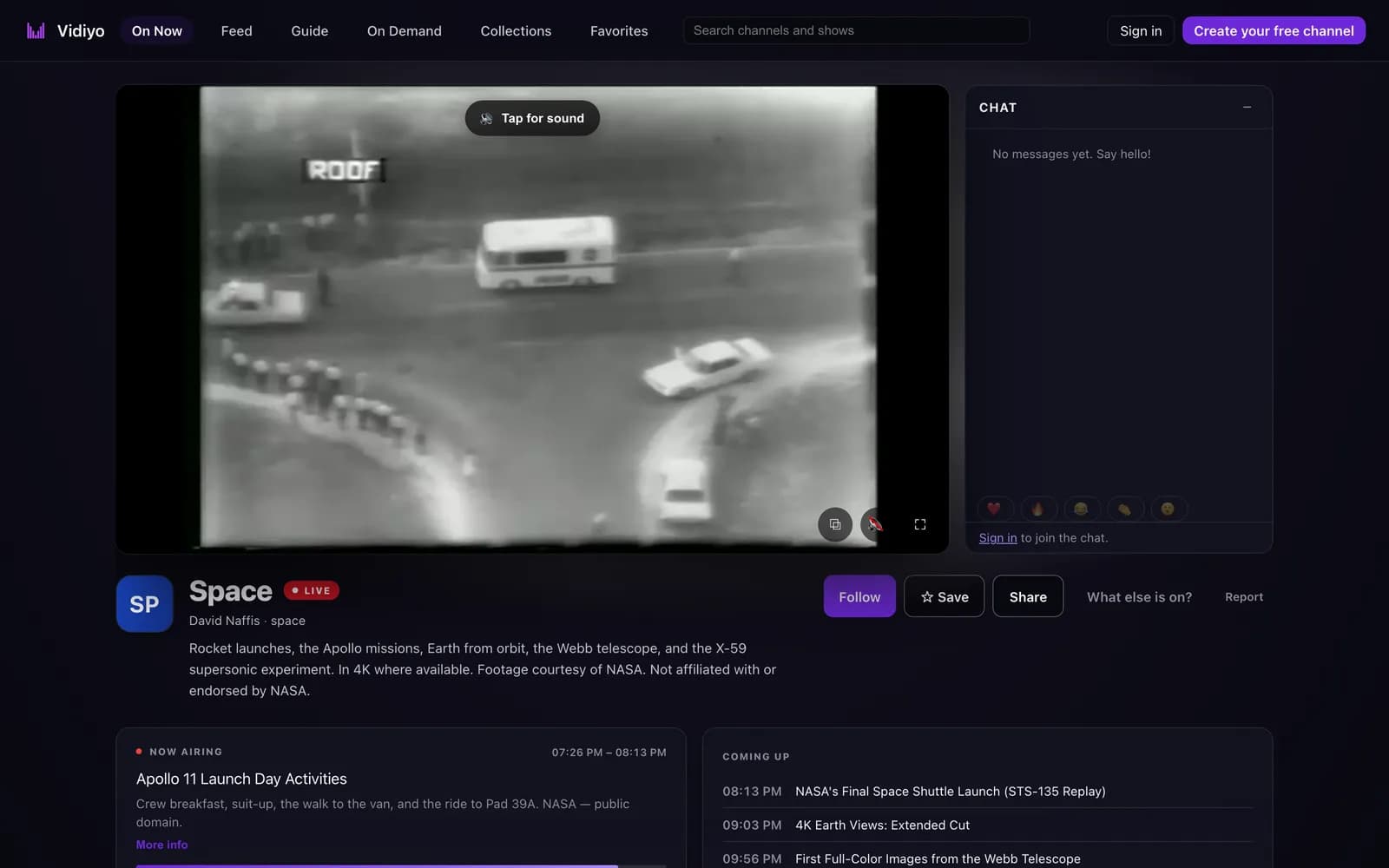
Click Full screen from On Now, or a channel name anywhere on the site, to open the channel's page. The player fills the left side with Tap for sound on top and mute and full-screen controls in its corner. Scroll down and the player docks into a small floating window so the program keeps playing.
Beside the player, the CHAT panel shows the channel room. Until you sign in it reads Sign in to join the chat. Signed-in viewers post messages and tap the emoji reactions along the bottom. A creator can turn chat off for a channel, in which case the panel does not appear.
Under the player sit the channel name with a LIVE badge, the creator, the description, and a row of buttons. Follow gets you alerts when the channel goes live. Save adds it to your favorites and turns into Favorited. Share opens a share sheet with a copy link option. What else is on? jumps to the guide. Report opens a form with a Reason list (Spam, Hate speech, Harassment, Violence, Sexual content, Copyright, Misinformation, Other) and a Details (optional) box; click Submit report to send it. Follow, Save, chat, and Report all ask you to sign in first.
Below that, NOW AIRING shows the current program with its time range and a More info link, and COMING UP lists the next programs with their start times.
5. Watch On Demand
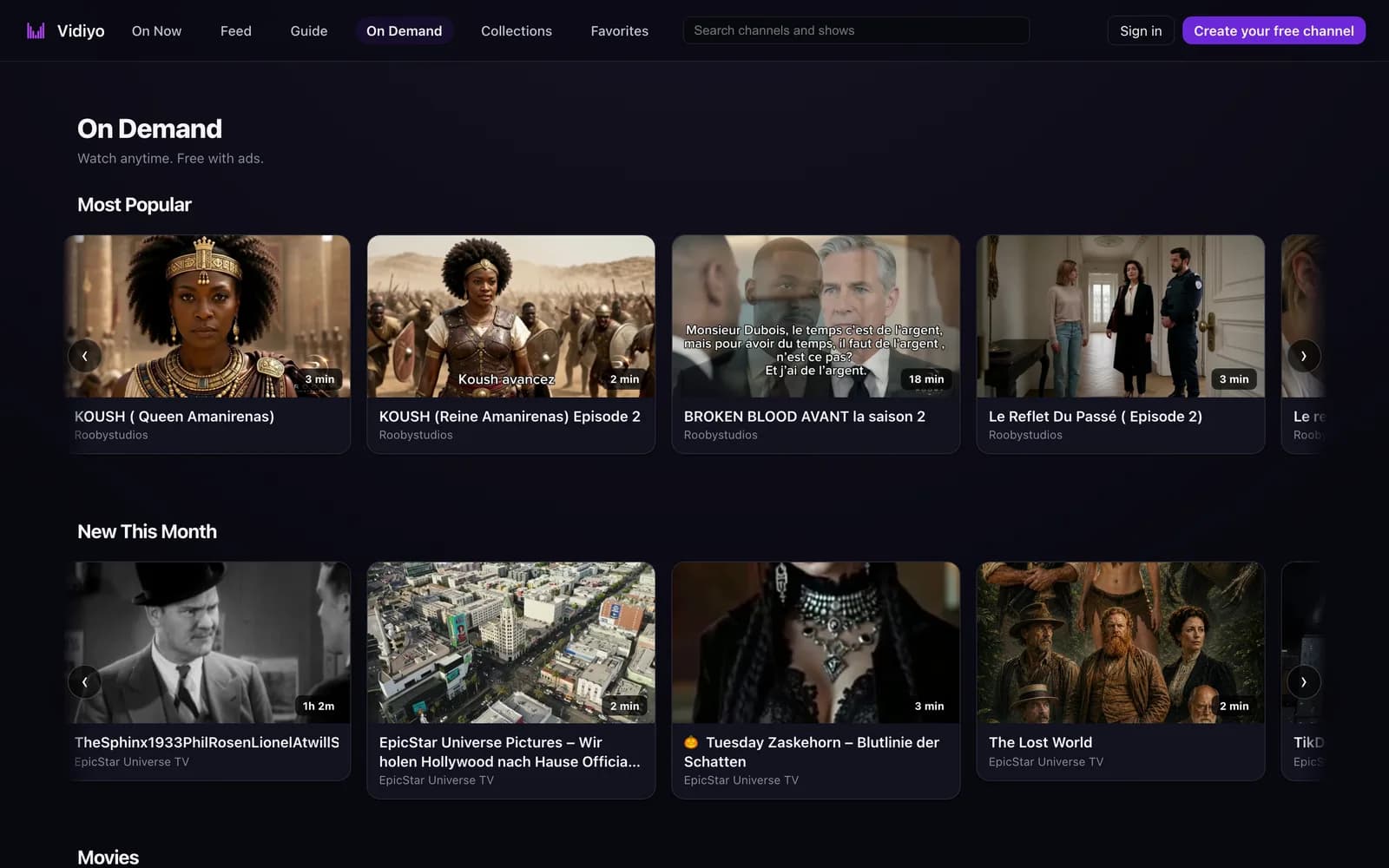
Click On Demand in the top bar, or go to /on-demand. The page reads Watch anytime. Free with ads. Titles sit in rails: Continue Watching once you have started something, Most Popular, New This Month, Leaving Soon, and one rail per category. Each card shows the artwork, the running time, the title, and the channel it comes from.
Click a title to play it. The player is seekable, and the ad breaks are part of the timeline, like a commercial break on TV. Below the player you find the description, running time, and other titles from the same channel. A title the creator has not made available where you are shows This title is not available in your region.
6. Swipe the Feed
Click Feed in the top bar, or go to /feed. The Feed is a full-screen vertical stream of short clips from creators. Scroll or swipe up to move to the next clip. Each clip plays muted; tap the speaker icon in the lower right to unmute. The heart shows the like count and the arrow shares the clip. The creator's handle, how long ago the clip was posted, the caption, and hashtags sit along the bottom and fade after a few seconds; tap the video to bring them back.
Chips at the top open hashtag lanes. Signed-in viewers also get a following lane with clips from creators they follow. Liking needs an account; without one the heart shows Sign in to like clips. Click On Now in the top left, or the X in the top right, to leave the Feed.

How the guide and ads work
Every 24/7 channel runs on a schedule its creator set in advance: one video after another, each with a start time. The guide reads that schedule and shows what is playing now and what comes next. The progress bar and the minutes-left count come from the block's start and end times, so they are right even if you tune in halfway through. When a block ends, the next one starts for everyone at once, like broadcast TV.
Ads on live channels are placed by the creator between programs and inserted by Vidiyo's playout engine into the stream itself, server-side. You see the same ad break at the same moment as every other viewer on that channel, and there is nothing to skip past on your device. On Demand works the same way: the ad breaks are already in the timeline when the title loads.
Content rated for adults is not part of the regular lineup. It lives in a separate section that asks signed-in viewers to verify their age before anything plays.
Tips
- Use the On now view of the guide to channel surf by reading, and Full schedule to plan an evening.
- Press the up and down arrow keys on the On Now page to change channels and m to toggle sound.
- Save channels with Save on the channel page. The Favorites page in the top bar lists them, and they float to the top of the guide.
- Set Remind me on a program in the guide when you want a nudge before it starts.
Quick answers
Do I need an account to watch?
No. Live channels, the guide, categories, On Demand, and the Feed all work without signing in. An account adds favorites, follows, reminders, likes, and chat.
Why is there no sound when a channel starts?
Browsers block sound until you interact with the page, so every channel starts muted. Click Tap for sound on the player, or press m, and audio stays on as you change channels.
How do I know what is on next?
Every player shows a NEXT line with the next program and its start time. The channel page lists more under COMING UP, and the guide's Full schedule view shows the whole day.
Can I skip the ads?
No. Ad breaks on live channels are inserted into the stream by Vidiyo's servers, and on On Demand they are part of the title's timeline. They are what keep the channels free.
How do I report a channel?
Open the channel's page and click Report under the player. Pick a Reason, add Details (optional), and click Submit report. You need to be signed in to send one; the sign-in requirement keeps the report queue free of spam.
What is the difference between Follow and Save?
Follow sends you alerts when the channel goes live. Save adds the channel to your Favorites page and floats it to the top of the guide. Both need an account, and you can use either one, or both, on the same channel.
Watch free live TV now
Creator channels stream 24/7 in your browser and on Roku, Fire TV, Apple TV, iOS, and Android. No account needed.