 Vidiyo
Tour Vidiyo Studio
Learn the Vidiyo Studio layout: the Dashboard, the sidebar sections for creating and programming, and the Ctrl+K command palette for jumping anywhere.
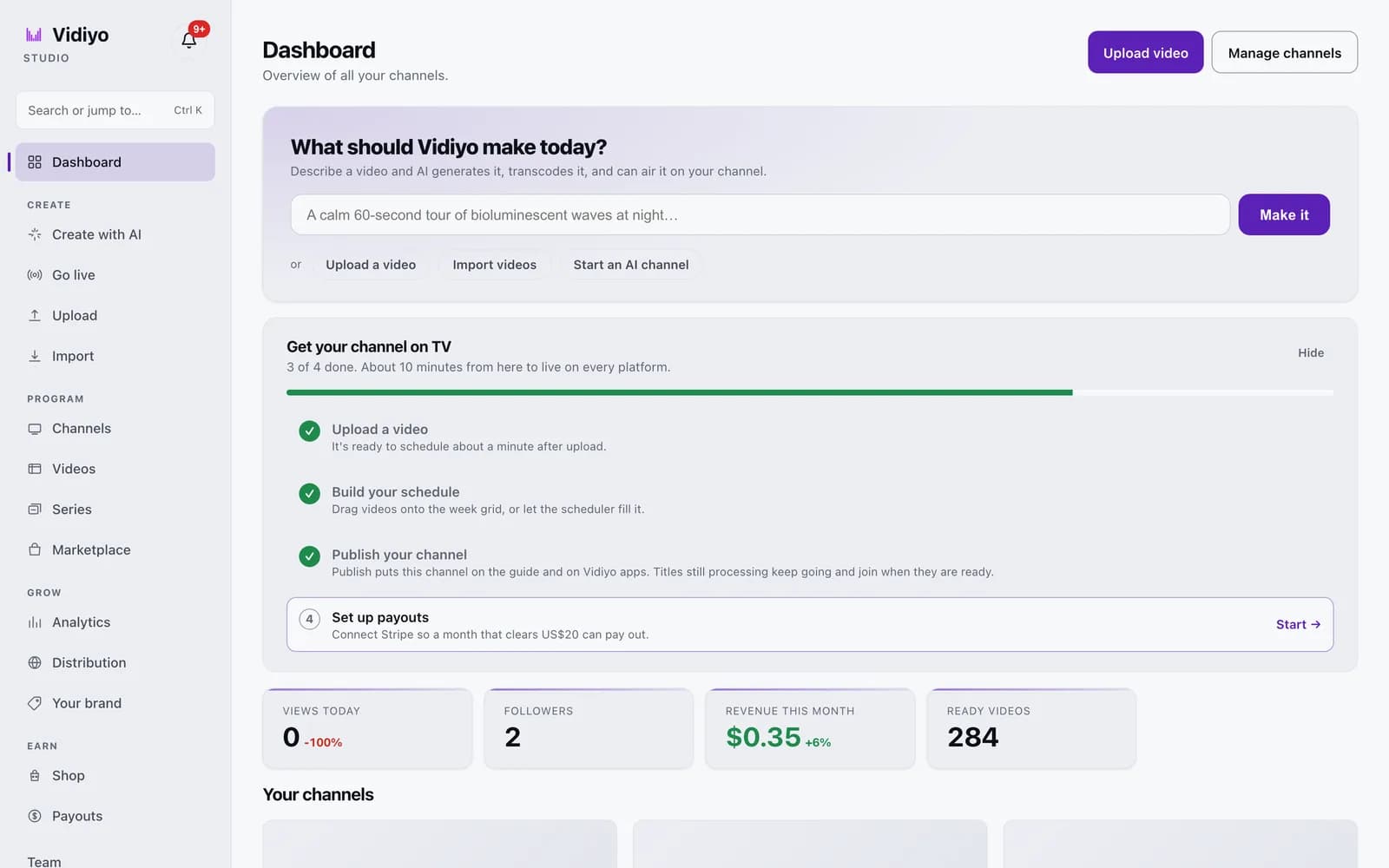
Vidiyo Studio is the creator app at vidiyo.com/studio. Everything you do as a creator happens here: uploading and importing, going live, building channels and schedules, reading analytics, and getting paid.
This tour covers the three things you use on every visit: the Dashboard, the sidebar, and the command palette.
Before you start
- Sign in to Vidiyo Studio. See Create your account if you do not have one.
Steps
1. Start on the Dashboard
The Dashboard is the first page after sign-in. It is an overview of all your channels.
- What should Vidiyo make today? sits at the top. Type a video idea and click Make it to open Create with AI with your prompt filled in. Below it are shortcuts: Upload a video, Import videos, and Start an AI channel.
- Get your channel on TV is a four-step checklist: upload a video, build your schedule, publish your channel, set up payouts. It disappears when every step is done, or click Hide.
- Four stat cards show Views today, Followers, Revenue this month, and Ready videos.
- Your channels lists every channel as a card. Recent uploads lists your latest videos with status and duration.
- Upload video and Manage channels in the top right go to the Upload page and the Channels page.
On a brand-new account with no channels, the Dashboard shows Welcome to Vidiyo Studio and asks you to create a channel first.
2. Learn the sidebar
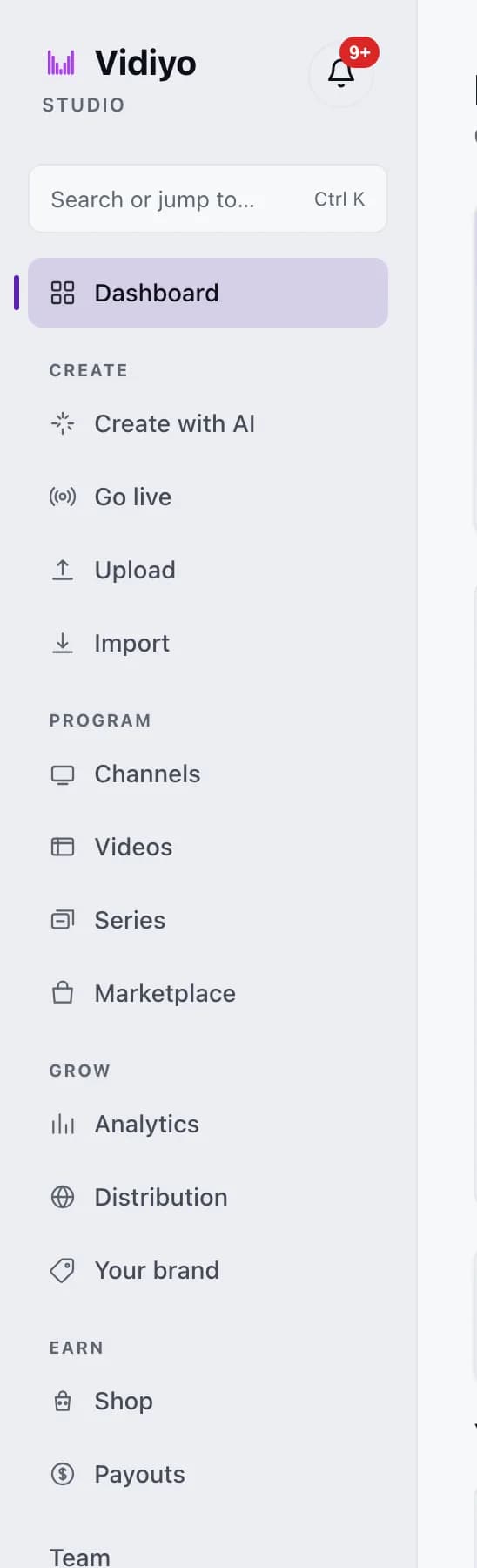
The sidebar is the same on every Studio page. It is grouped by what you are doing.
- Dashboard. Back to the overview.
- Create: Create with AI, Go live, Upload, Import. Ways to get video onto Vidiyo. This section stays hidden until your email is verified.
- Program: Channels, Videos, Series, Marketplace. Your library and where it airs.
- Grow: Analytics, Distribution, Your brand. Audience numbers, cross-posting clips, and your brand site.
- Earn: Shop, Payouts. Products and getting paid.
- Team and Account at the bottom.
The current page is highlighted. The bell icon in the top left holds your notifications.
3. Jump anywhere with the command palette
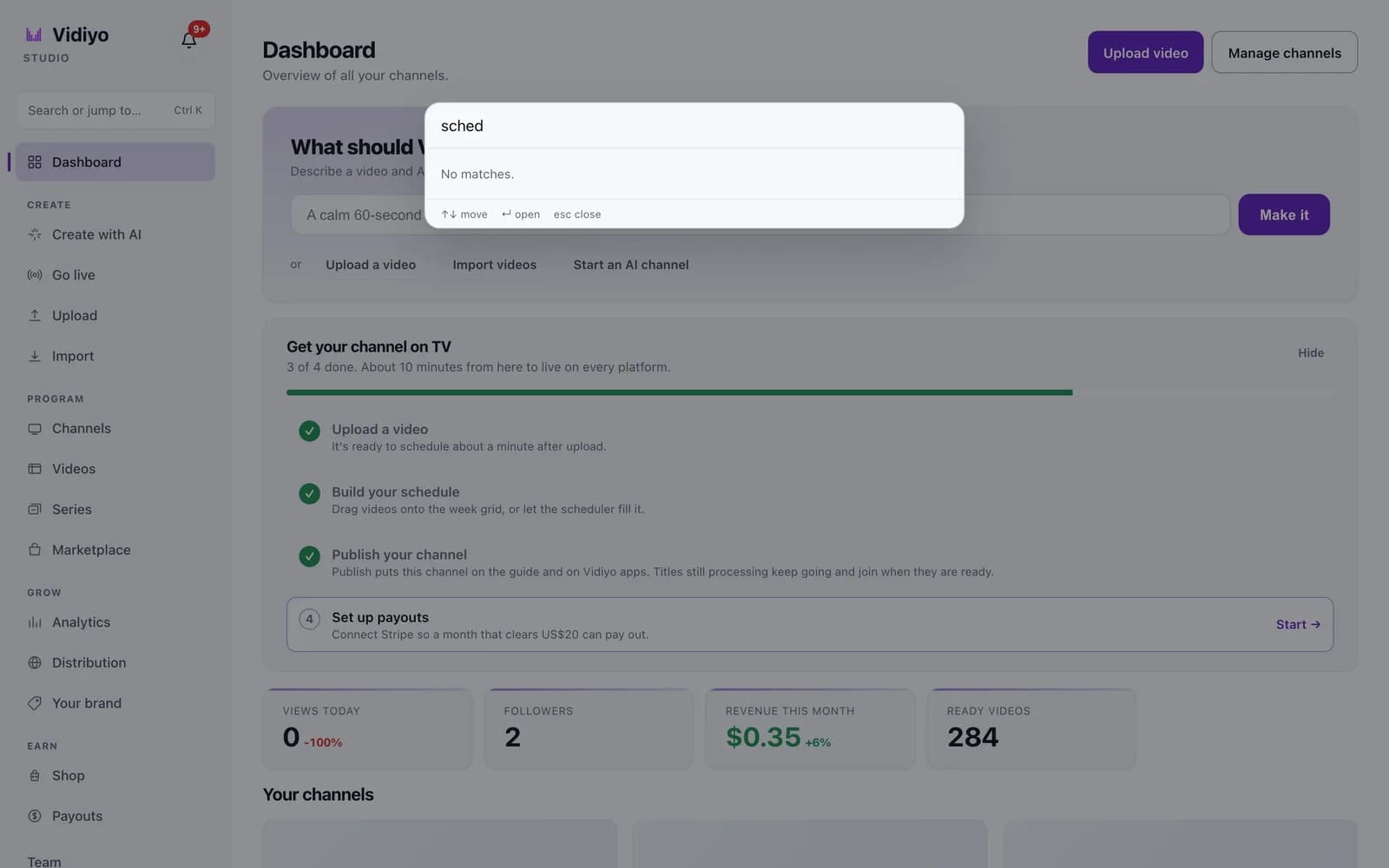
Press Ctrl+K on Windows or Cmd+K on Mac, or click the Search or jump to... box at the top of the sidebar. The palette opens over the page.
Type a page name, an action, a channel name, or a video title. Results update as you type and show up to 12 matches. A query matches when every word you typed appears in the result's label. Video titles come from a live search of your library.
Use the arrow keys to move, Enter to open, and Esc to close. If nothing matches, the palette reads No matches.
Tips
- The palette lists create actions too: Upload a video, New channel, New series, Go live, and Create with AI.
- Type part of a channel or video name to open it without leaving the page you are on.
- The Get your channel on TV checklist reads "About 10 minutes from here to live on every platform." Follow it in order for the fastest path to a published channel.
Quick answers
Where is Vidiyo Studio?
At vidiyo.com/studio. Sign in and you land on the Dashboard. The sidebar takes you everywhere else.
Why is the Create section missing from my sidebar?
Your email is not verified yet. The Create links (Create with AI, Go live, Upload, Import) appear once you click the link in your verification email. Use Resend email in the yellow bar if you need a new one.
What is the keyboard shortcut for the command palette?
Ctrl+K on Windows and Linux, Cmd+K on Mac. Clicking the search box at the top of the sidebar opens the same palette.
Can I hide the getting-started checklist?
Yes. Click Hide in the top right of the Get your channel on TV card. It also hides itself once all four steps are complete.
Open Studio
Upload a video, go live, or program your channel. Studio is free, and every guide here walks you through one task.