 Vidiyo
Cross-post clips to social
Connect YouTube, TikTok, Instagram, X, and Facebook to Vidiyo Studio, then publish or schedule a clip to all of them from the Distribution page.
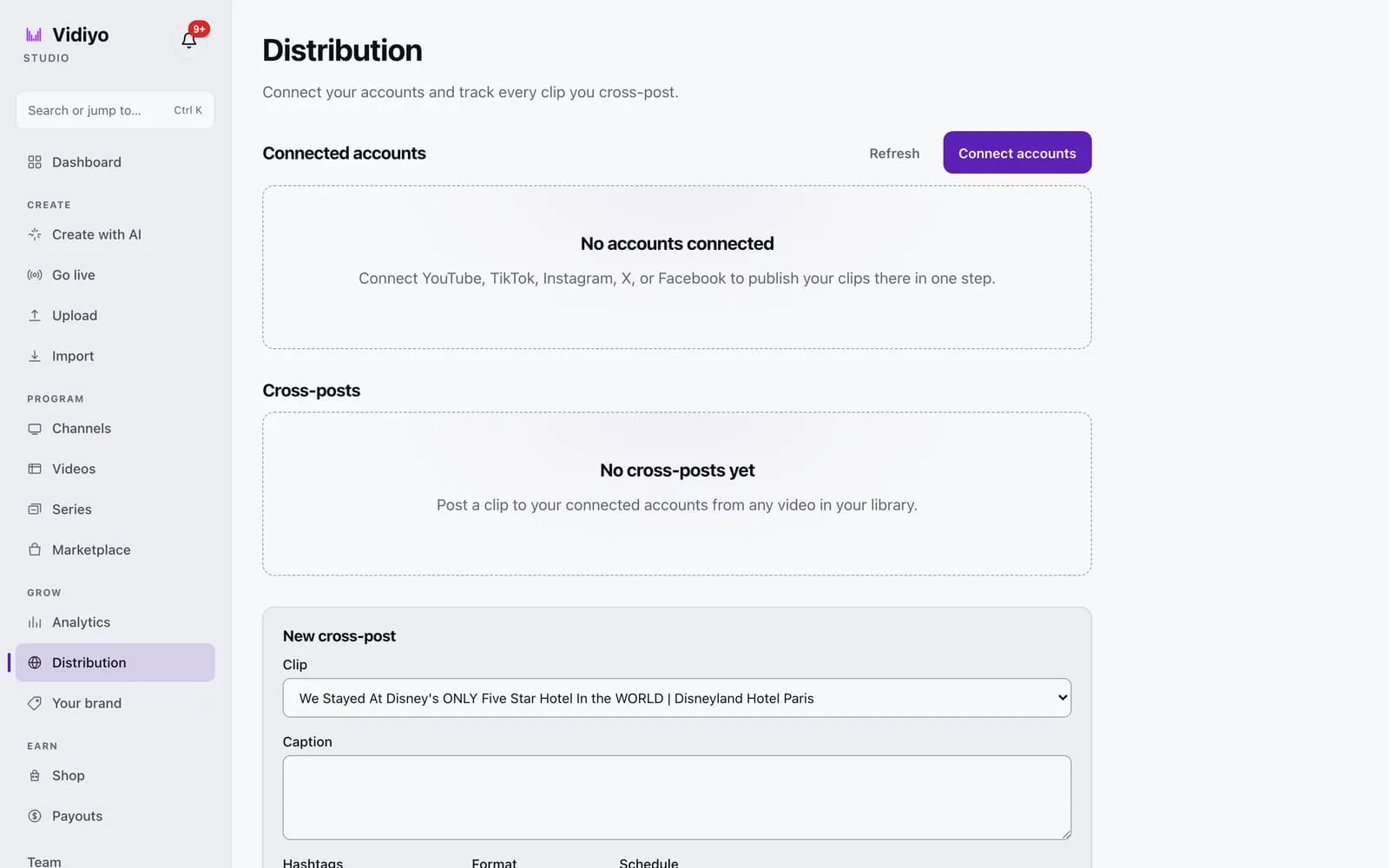
Distribution lets you post a clip from your Vidiyo library to YouTube, TikTok, Instagram, X, and Facebook without re-uploading it on each site. You connect each account once, then pick a clip, write a caption, choose the platforms, and publish now or at a scheduled time.
Every post you send shows up in the Cross-posts list with its status and a link to the published post.
Before you start
- The clip must have finished processing and be public. You must own it. An imported video needs a confirmed ownership attestation first, and a clip that uses a licensed catalog sound cannot leave Vidiyo.
- Your browser must allow popups for vidiyo.com. Account linking opens in a new tab.
Steps
1. Open Distribution
In the Studio sidebar, under Grow, click Distribution. The page has three parts: Connected accounts, Cross-posts, and the New cross-post form. Before you connect anything, the first card reads No accounts connected.
2. Connect your accounts
Click Connect accounts. A new tab opens the linking page, where you sign in to each social account you want to use. When you finish, close that tab and click Refresh in Studio. Each connected account appears as a card with the platform name, your account name, and an active badge. Once you have at least one account, the button reads Manage accounts.
3. Pick a clip and write the caption
In New cross-post, choose a Clip from the list of your ready videos. Write a Caption of up to 5,000 characters and add Hashtags such as #vidiyo #shorts. In Format, pick Vertical (9:16), Square (1:1), or Original. Vidiyo renders the export in that shape before it posts.
4. Choose where to post
Under Post to, tick each platform you want. Only connected platforms can be ticked. A platform you have not linked shows Connect accounts first next to it.
5. Publish now or schedule
Leave Schedule empty and click Publish now. Or set a date and time in Schedule; the button changes to Schedule. A toast confirms Publishing started or Scheduled. If one platform is not connected, the toast lists it under Some platforms need connecting and the others still go out.
6. Track the post
Each platform gets its own row in Cross-posts with a status badge: queued, uploading, published, failed, or canceled. A published row shows a View link to the post and, once the platform reports it, a view count. A failed row shows the error. Click Cancel on a queued post to stop it before it uploads.
Tips
- Want the file instead of a post? Pick the clip and format, then click Generate download. Studio renders it and shows a Download your clip link when it is ready.
- Click Disconnect on an account card to unlink it. Posts already published stay on that platform.
- If your account token expires, the card badge changes from active to expired. Click Manage accounts and sign in to that platform again.
- Clips marked as AI-generated in their video details carry that disclosure to YouTube and TikTok automatically.
Quick answers
Which platforms can I cross-post to?
YouTube, TikTok, Instagram, X, and Facebook. Each one needs its own connection through Connect accounts.
Why can't I tick a platform in Post to?
The checkbox is disabled until that platform is connected. Click Connect accounts or Manage accounts, link the account, then click Refresh. If a platform shows (not configured), it is not available on this Vidiyo environment.
Can I cross-post a video I imported from YouTube?
Only after you confirm you own it. Imported videos need an ownership attestation before they can be posted elsewhere. Videos you do not own, and clips that use a licensed catalog sound, cannot be cross-posted.
Can I cancel a scheduled post?
Yes, while it is still queued. Click Cancel on its row in Cross-posts. Once a post is uploading or published, cancel is no longer available and you would remove it on the platform itself.
Does Vidiyo re-encode my clip?
Yes. Vidiyo renders an export in the Format you chose (vertical, square, or original) and sends that file to each platform. The same export is reused if you post the clip again in the same format.
Open Studio
Upload a video, go live, or program your channel. Studio is free, and every guide here walks you through one task.